Edit Profile
The Edit Profile feature allows users to update and manage their personal, educational, and professional information in the application. It provides an intuitive interface for editing details and customizing profile visuals.
Tabs
The Edit Profile screen is divided into several tabs to organize user information efficiently:
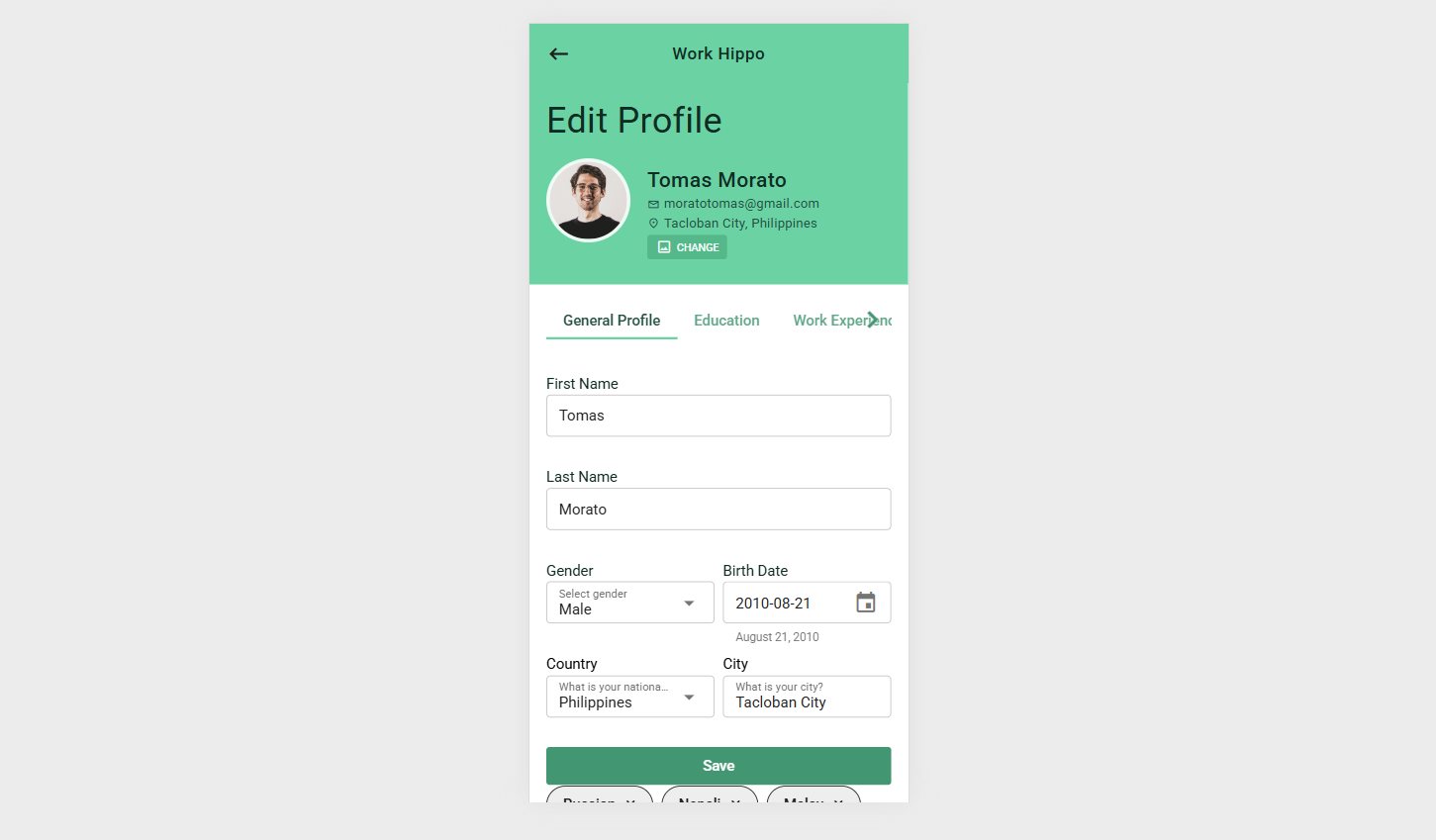
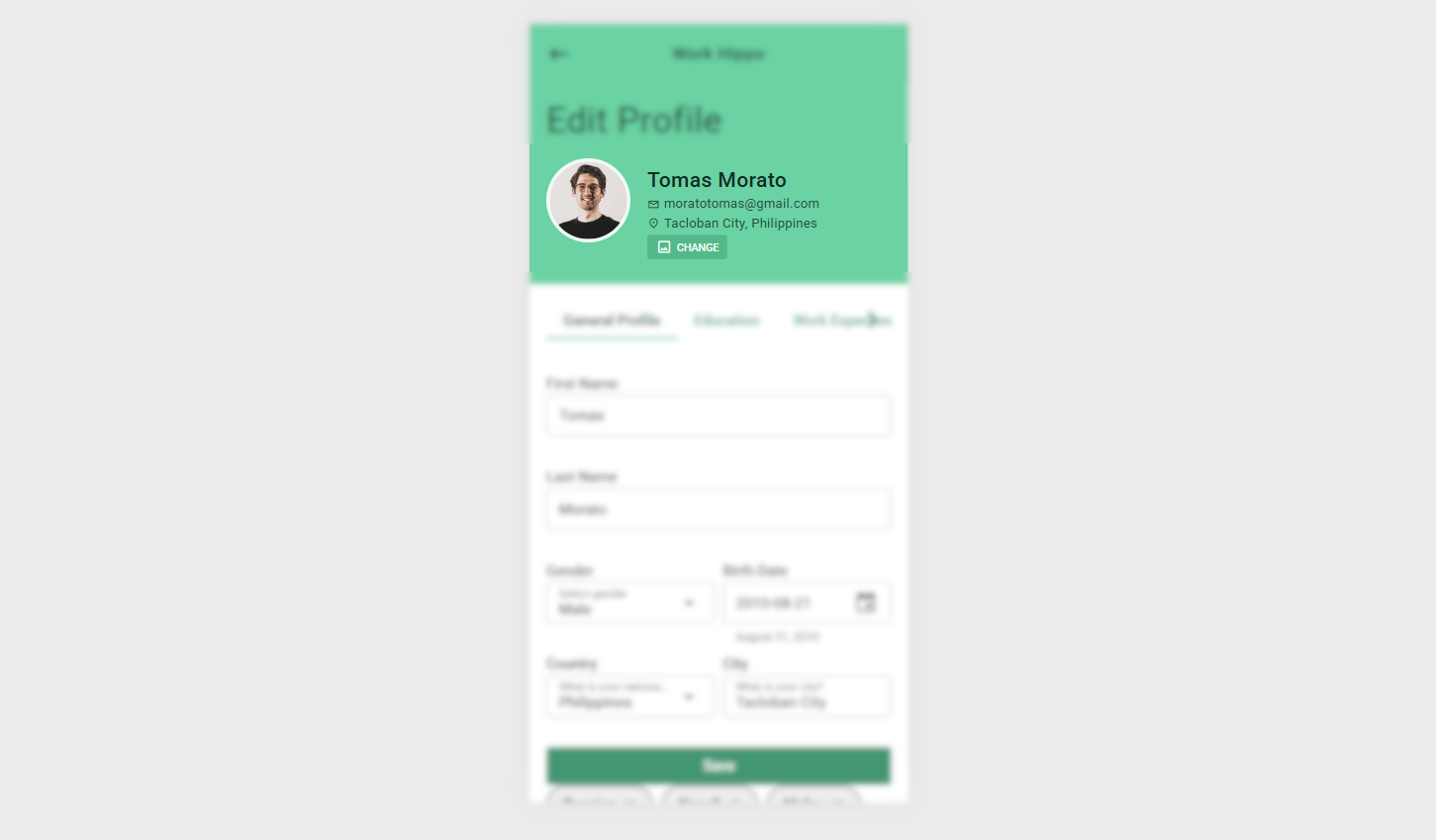
General Profile
- Contains input fields for basic personal information.
- Users can update details such as name, contact information, and other relevant personal data.
Screenshot:
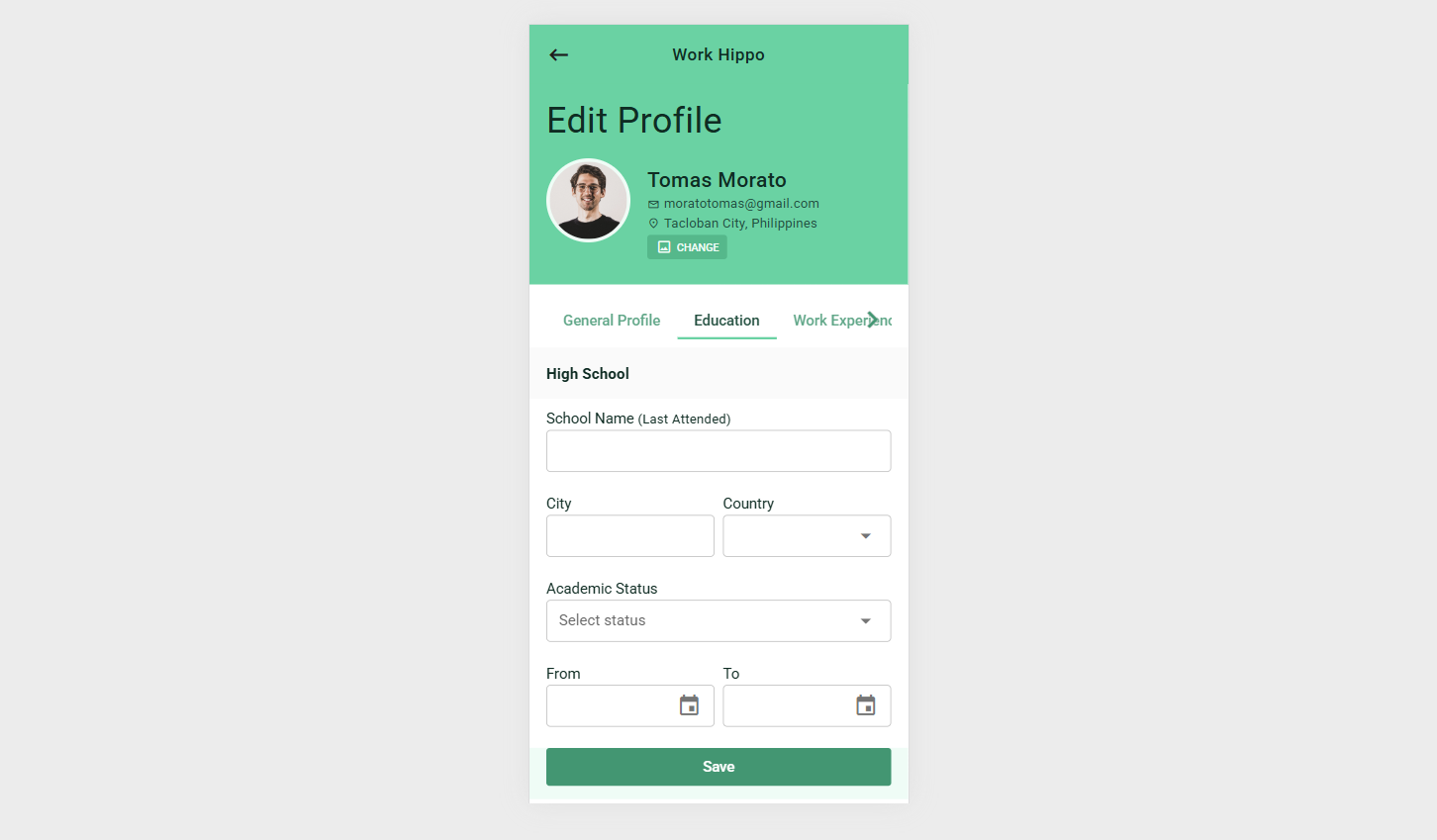
Education
- Provides a form to enter educational background details.
- Input fields include institution name, degree, field of study, start and end dates, and additional certifications or honors.
Screenshot:
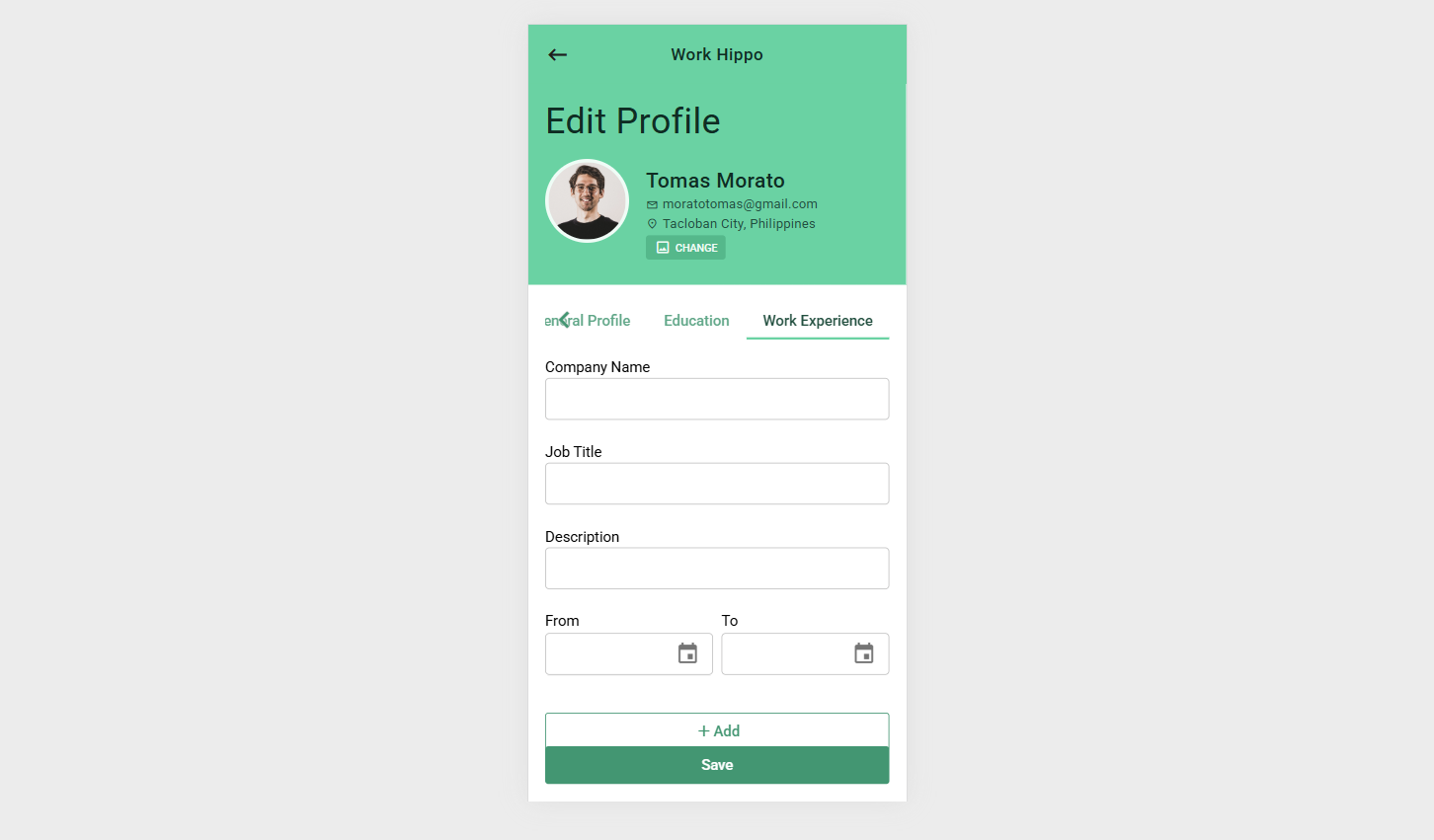
Work Experiences
- Contains a form to record professional experience.
- Input fields include company name, job title, start and end dates, job responsibilities, and achievements.
Screenshot:
Action Buttons
Add/Edit Profile Picture
- Users can add a new profile picture or update an existing one.
- Opens a gallery interface where users can select an image to upload.
Screenshot:
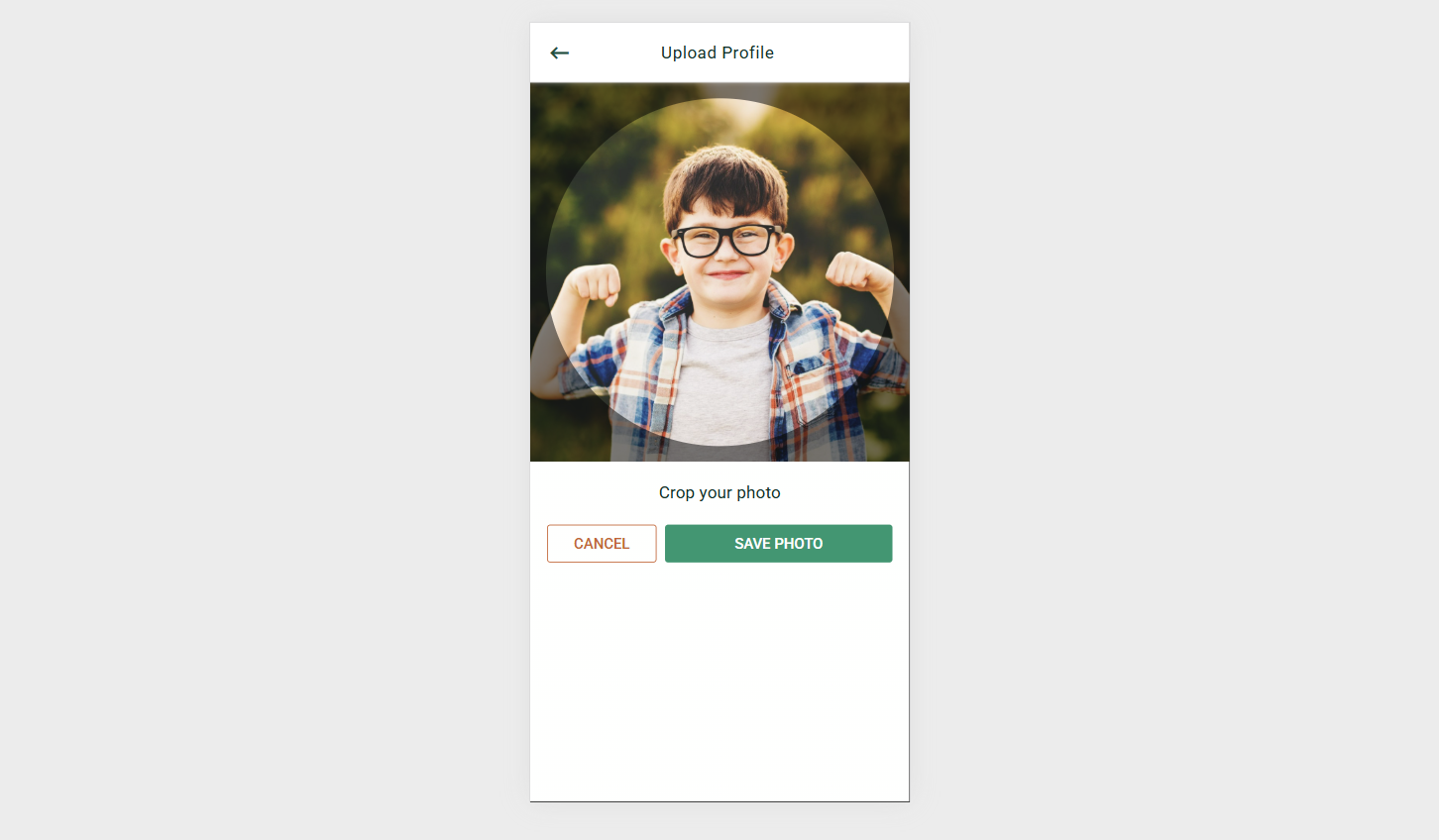
Upload Profile Picture Dialog
When uploading a profile picture, a dialog interface is provided for a seamless user experience:
- Crop Image: Users can crop the selected image to the desired size and orientation.
- Save or Cancel: After cropping, users can save the changes or cancel the operation to revert to the previous image.
Screenshot: