
Project Negotiation
The Project Negotiation module serves as the central workspace where clients and freelancers manage job discussions, proposals, deliverables, payments, and communication throughout the lifecycle of a project. Access to features and actions varies depending on the user role and project status.
Shared Tabs (Client & Freelancer)
Overview
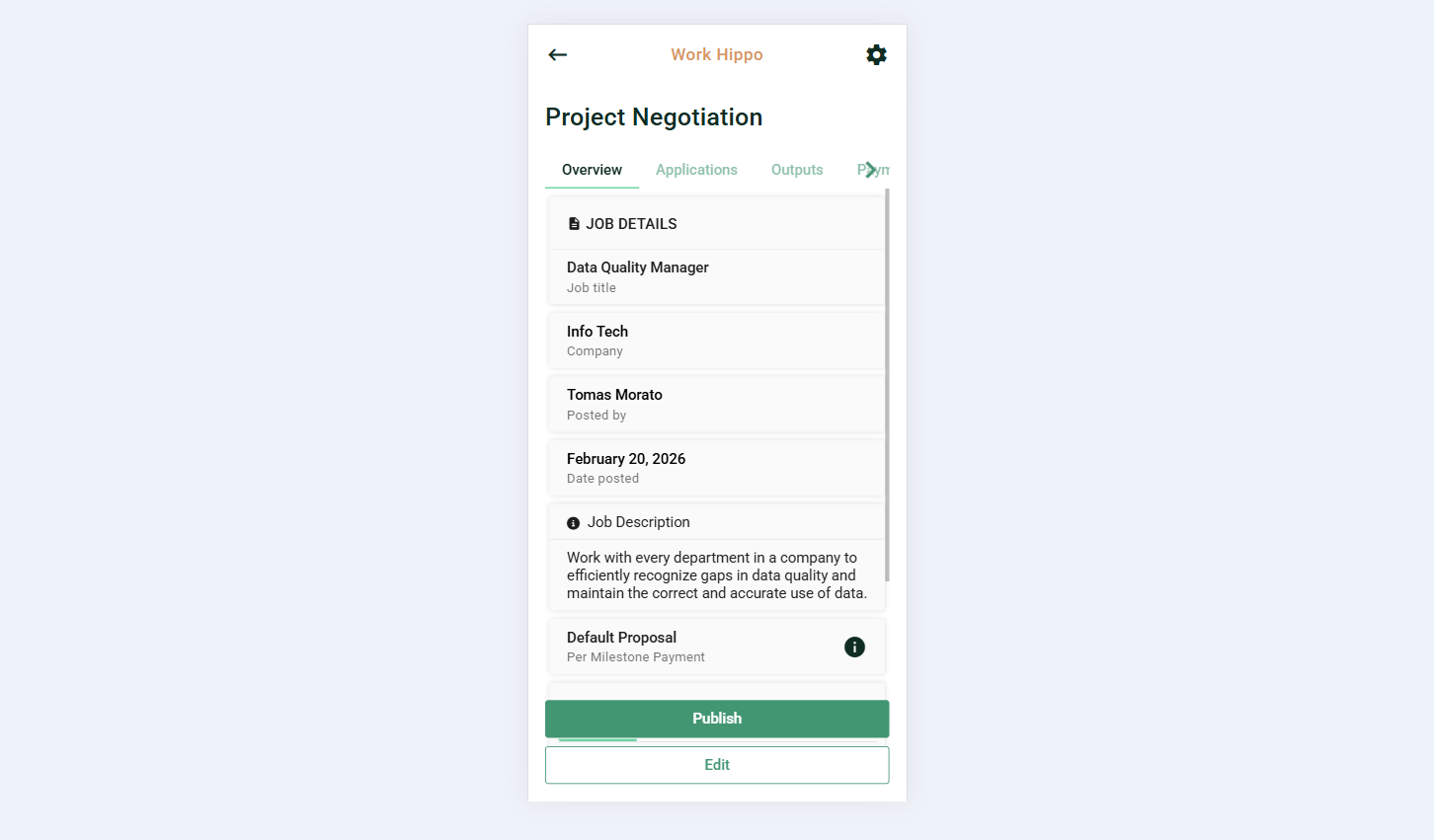
The Overview tab displays the complete details of the job, providing a high-level summary of the project scope, requirements, and current status.
Action Buttons (Client Only):
- Publish – Publishes the job to make it visible to potential applicants.
- Edit – Edit the job for any changes before publishing.
Screenshot:
Navigation Buttons (Client Only):
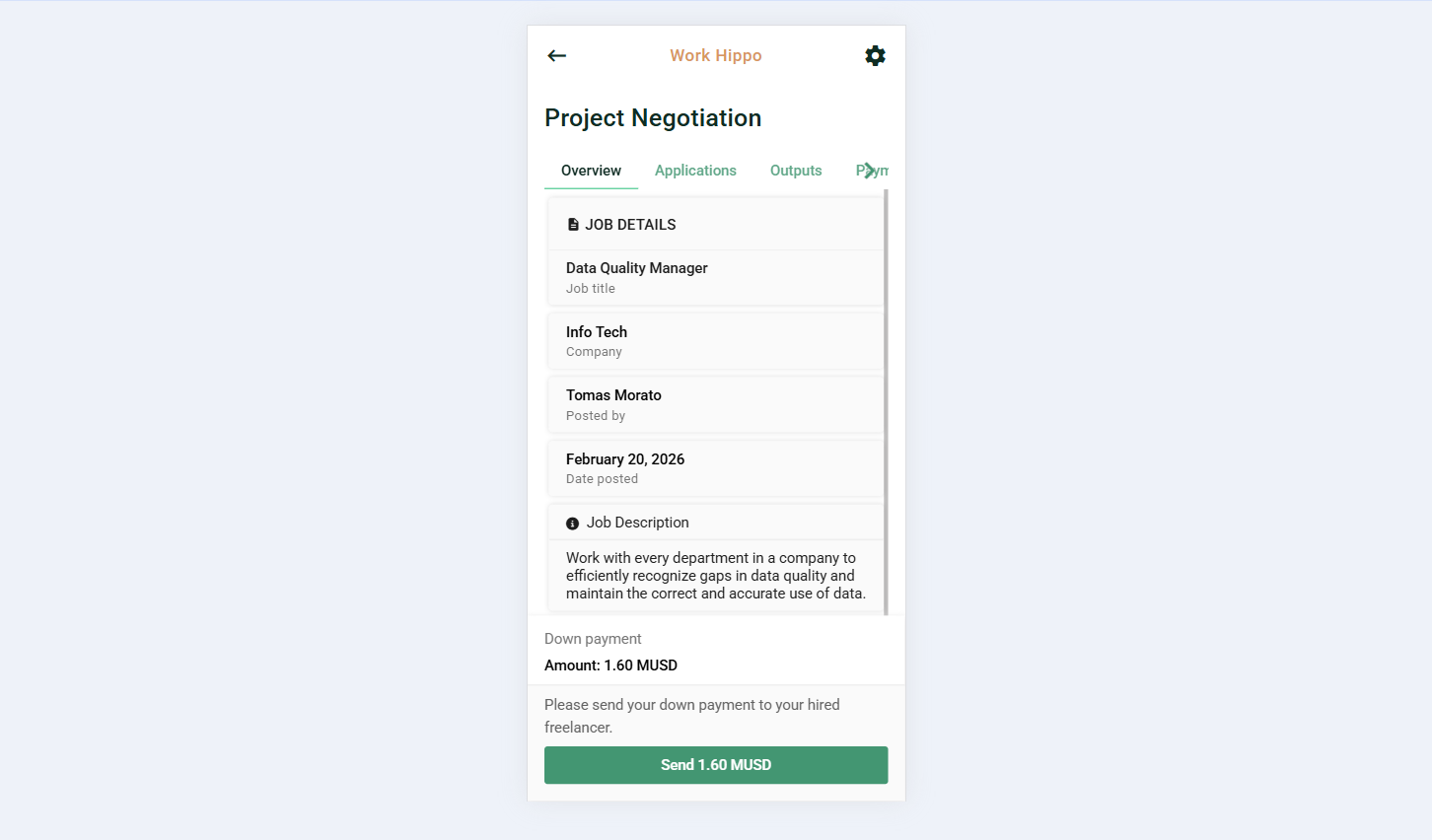
- Send Down Payment – Redirects the client to the payment send page to initiate the required down payment.
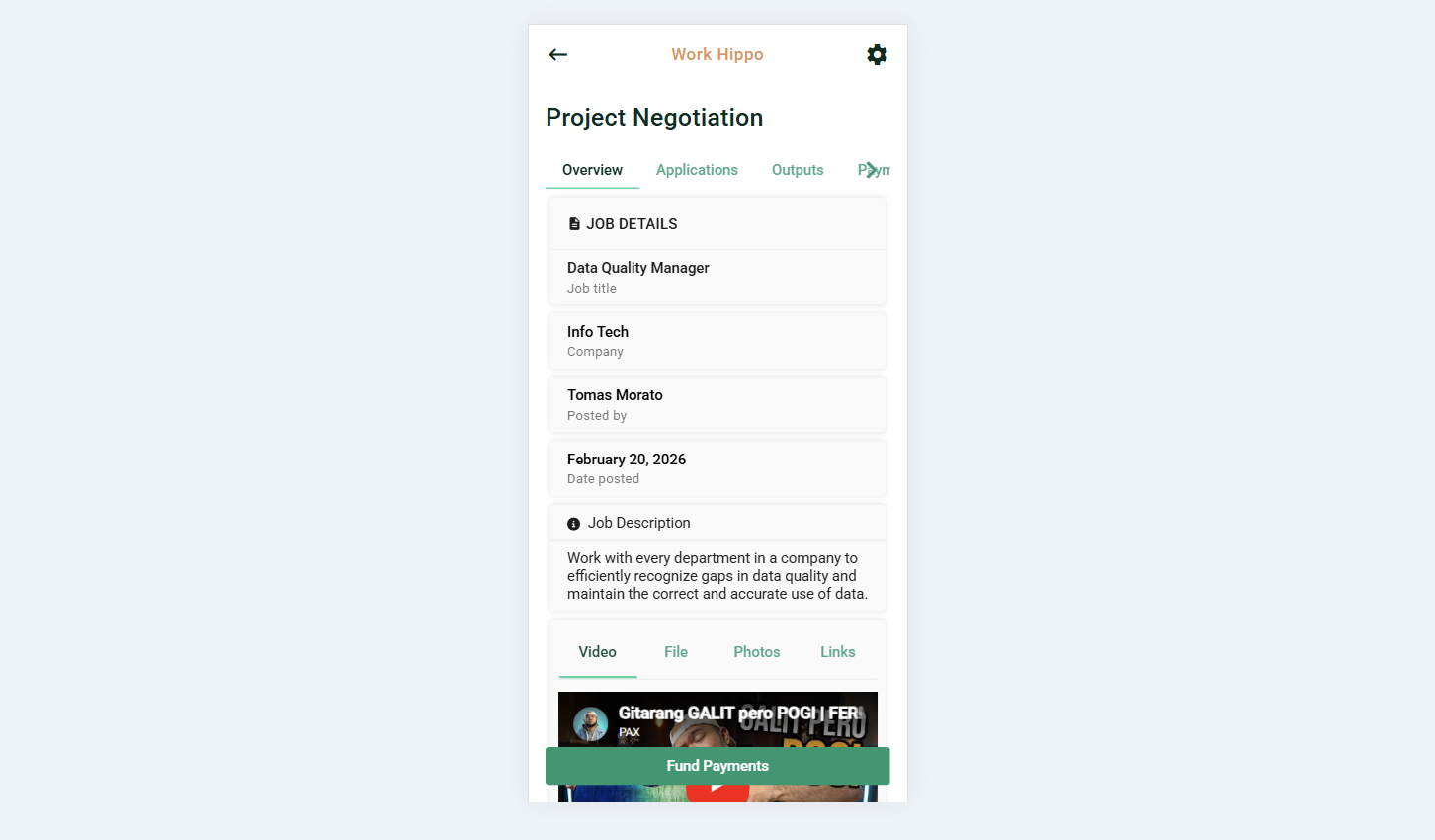
- Fund Payments – Redirects the client to the payment funding page to secure project funds.
Screenshots:
Down payment
Fund payments
Fund Payments
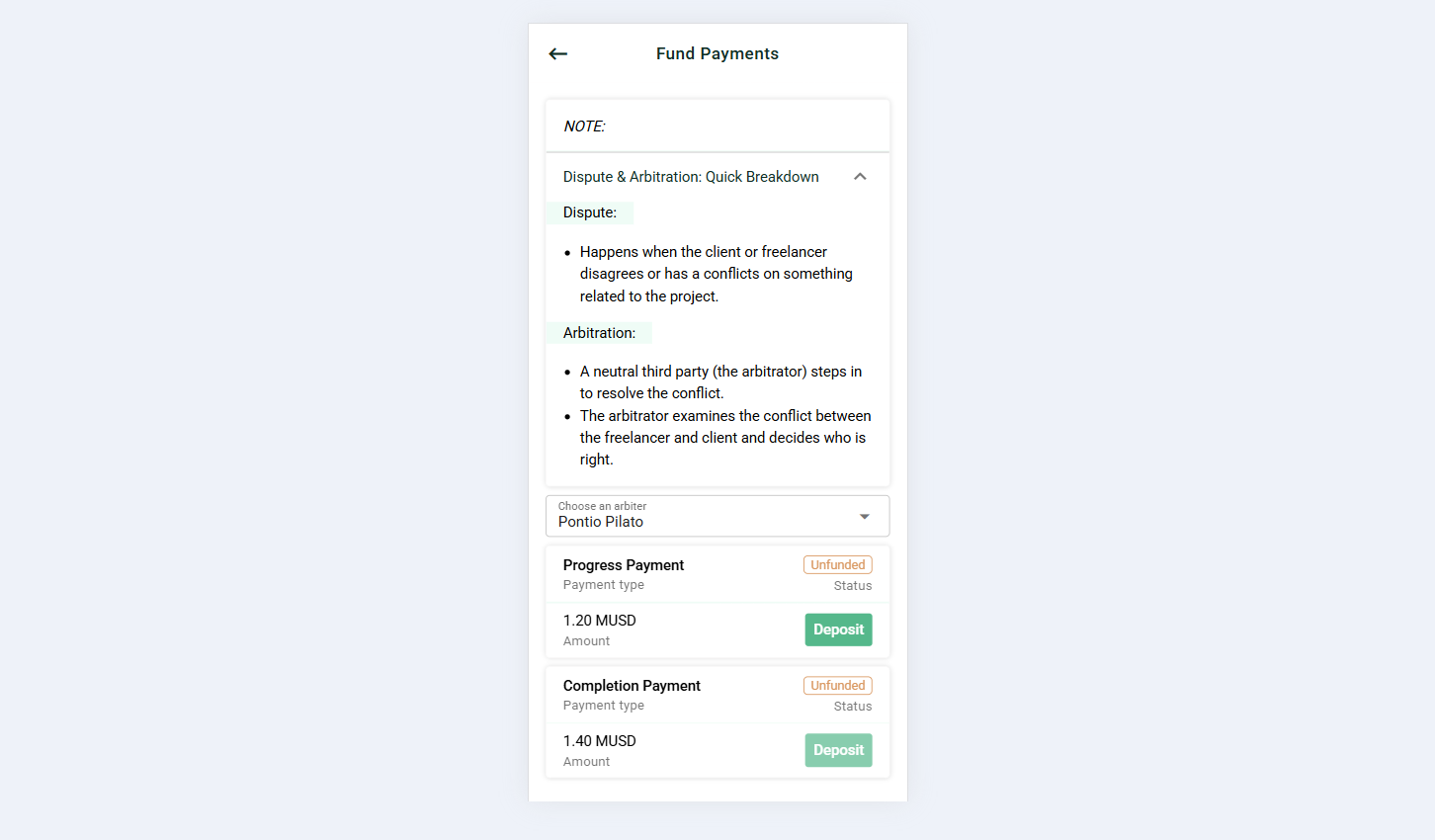
- Arbiter Selection – A select input allowing the client to choose an arbiter for the payment smart contract.
- Payments for Funding List – Displays all payments awaiting funding.
- Deposit Action – Instantiates the payment smart contract and opens a funding dialog.
Screenshot:
Fund payments list
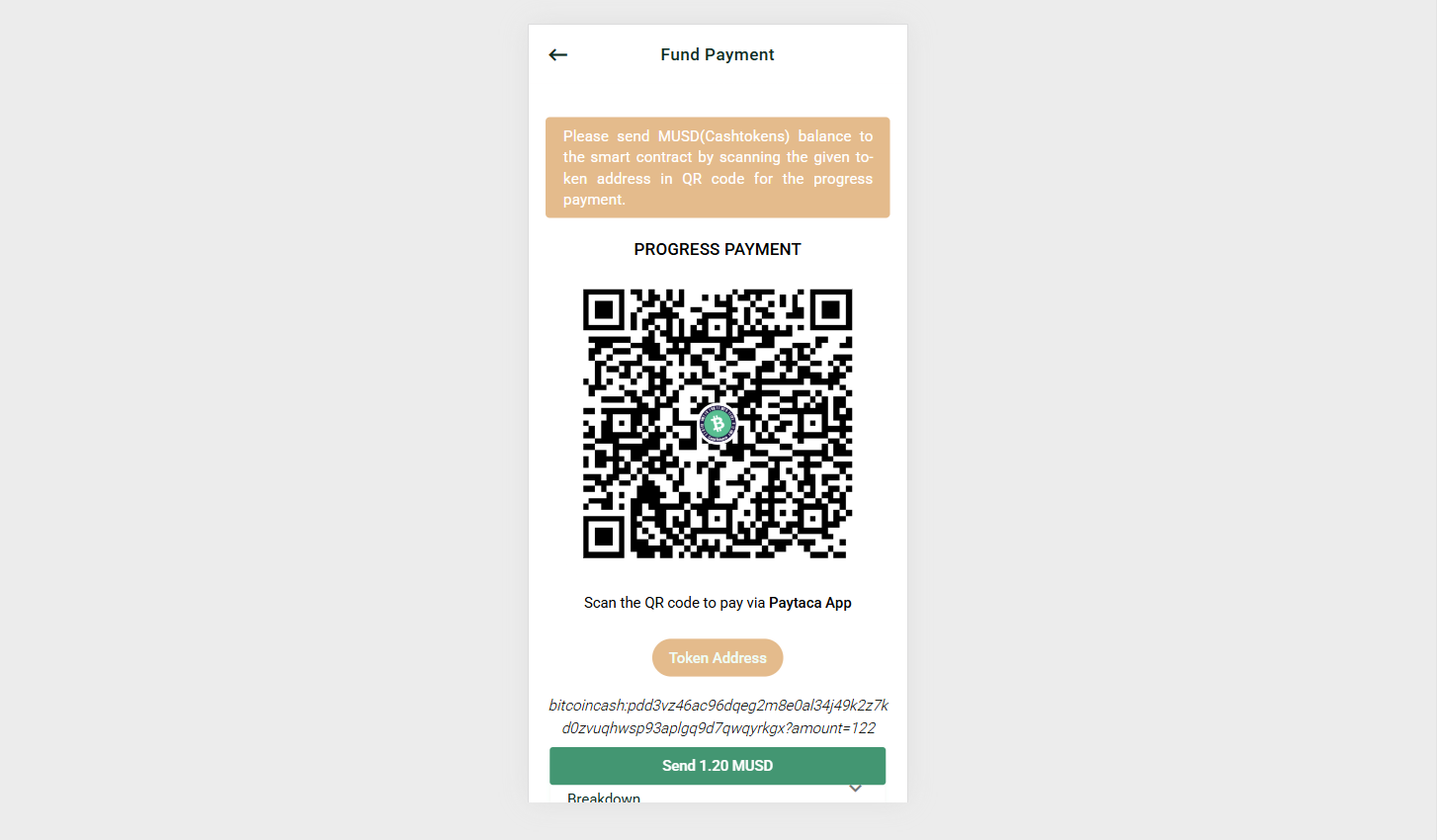
Fund Payment Dialog:
- Displays the smart contract token address as a QR code.
- Provides an action button that redirects to the send screen for funding the payment.
Screenshot:
Fund payment
Outputs
(Enabled once project development is ongoing)
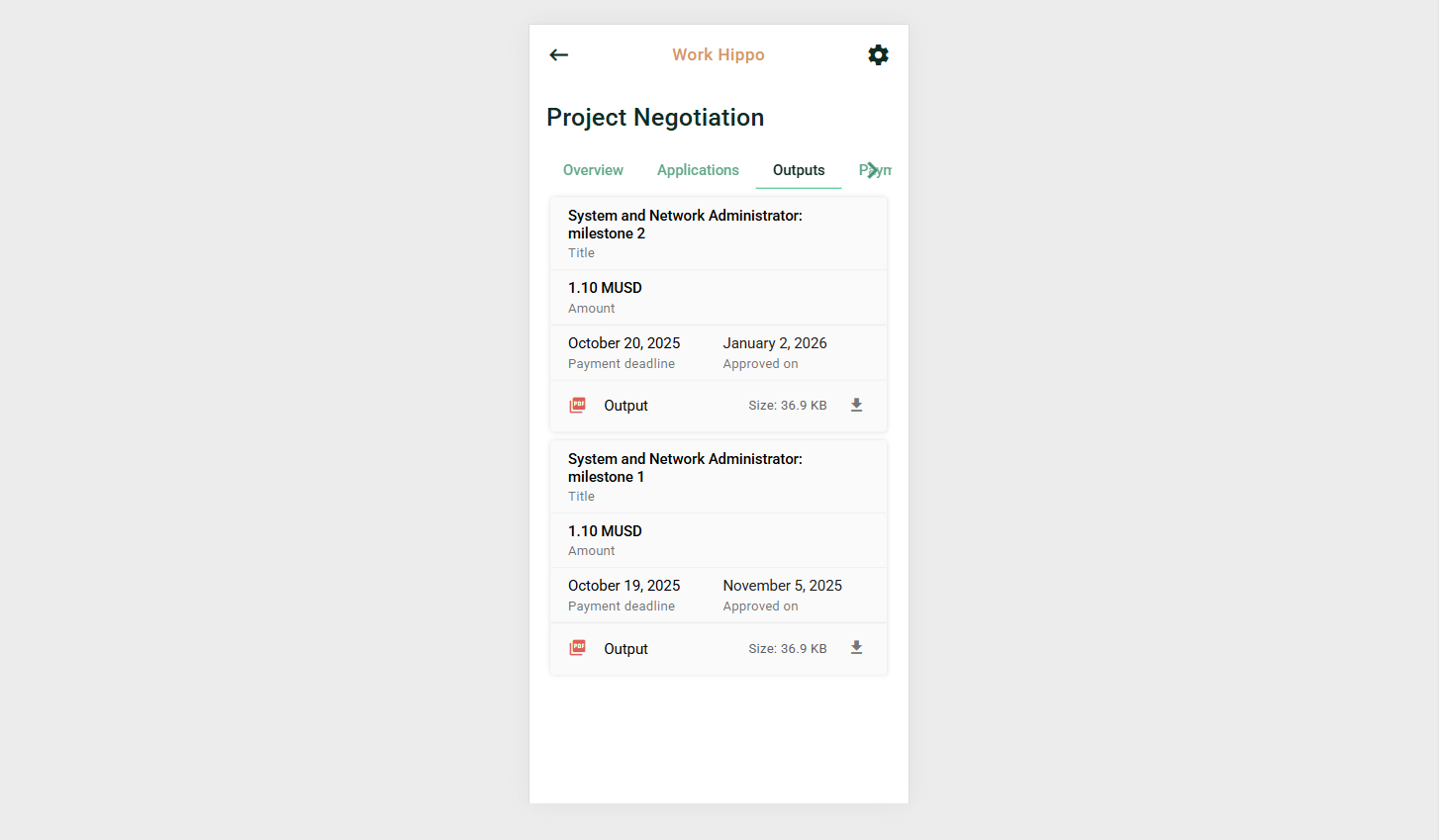
The Outputs tab lists all approved and submitted outputs from the freelancer. Each output includes a downloadable PDF file for detailed review and reference.
Screenshot:
Available Actions:
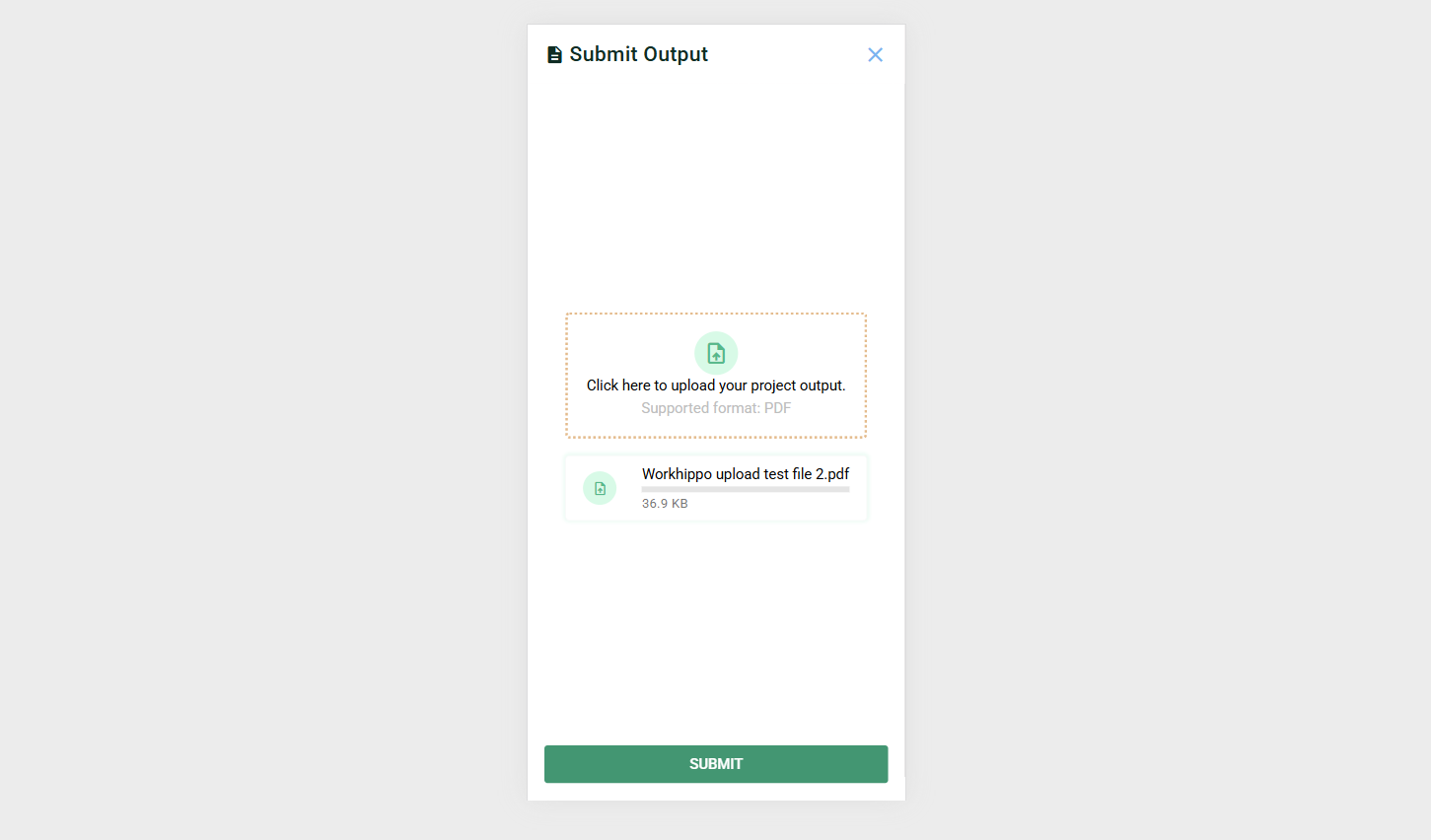
- Submit Output (Freelancer only) – Opens a dialog form for uploading a project output in PDF format.
- View Submitted Output – Opens the submitted output for review.
Dialogs and Forms:
- Submit Output (Freelancer only) – Allows the freelancer to upload and submit an output in PDF format.
Screenshot:
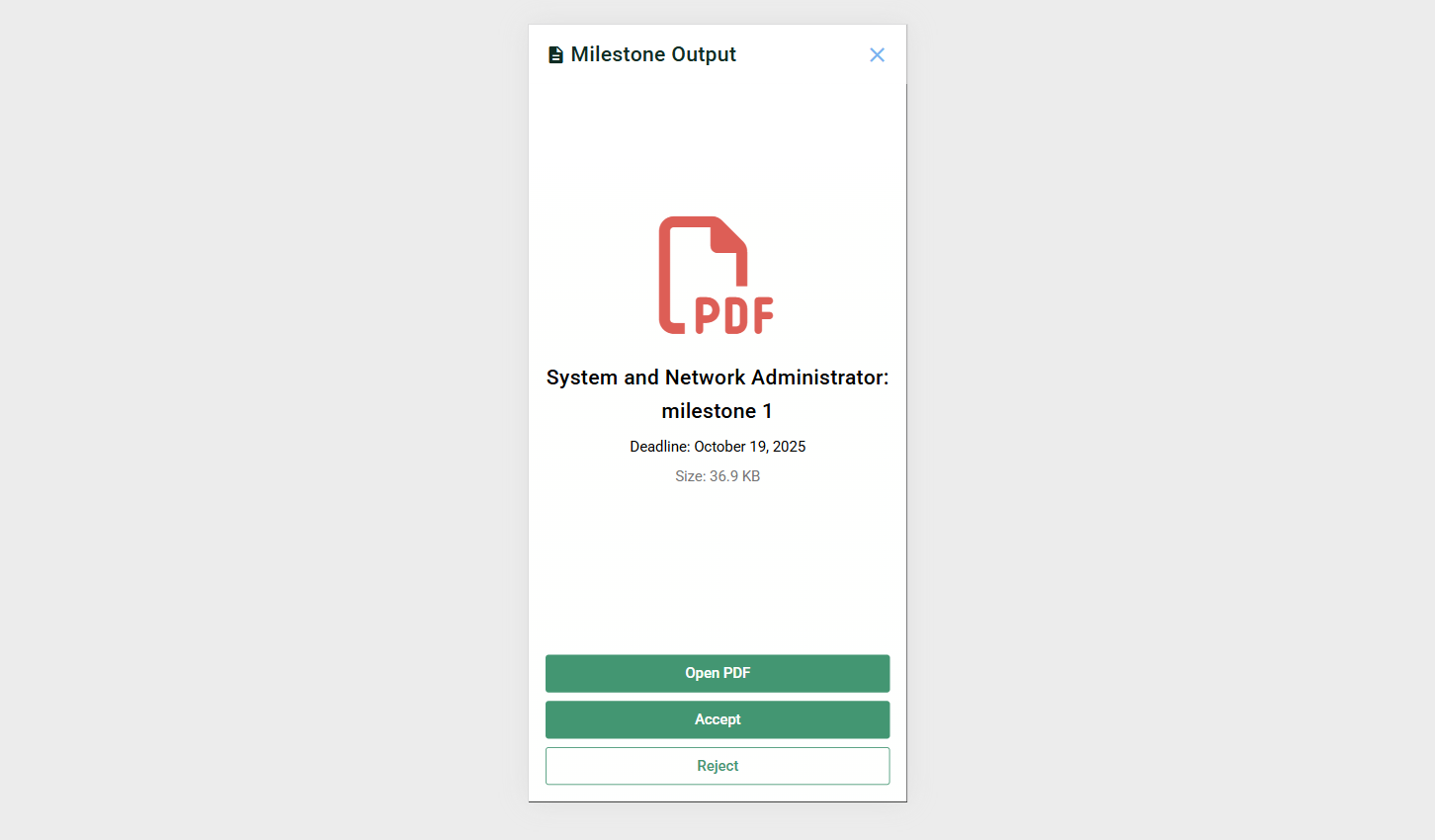
- Output Viewer – Displays the submitted output with the following actions:
- Download PDF – Downloads the output file.
- Open PDF – Opens the downloaded PDF file.
- Accept – Approves the submitted output.
- Reject – Rejects the submitted output.
Screenshot:
Payments
(Enabled once project development is ongoing)
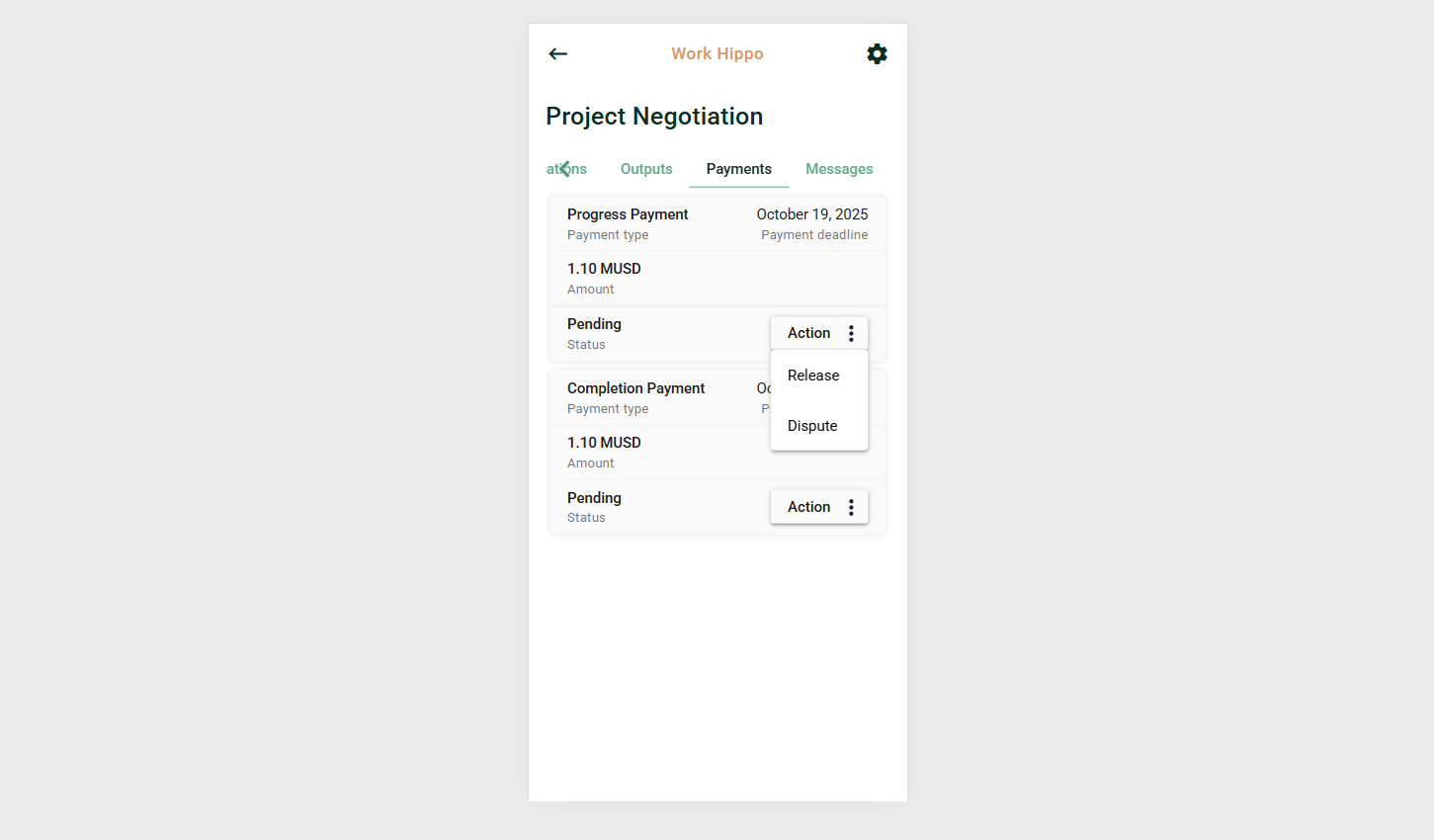
The Payments tab shows all payment agreements associated with the job.
Action Buttons (via dropdown menu):
- Release (Client only) – Releases the payment from the smart contract using MUSD CashTokens.
- Dispute – Initiates a payment dispute in case of conflict or misunderstanding between the client and freelancer.
Screenshot:
Messages
(Enabled once project development is ongoing)
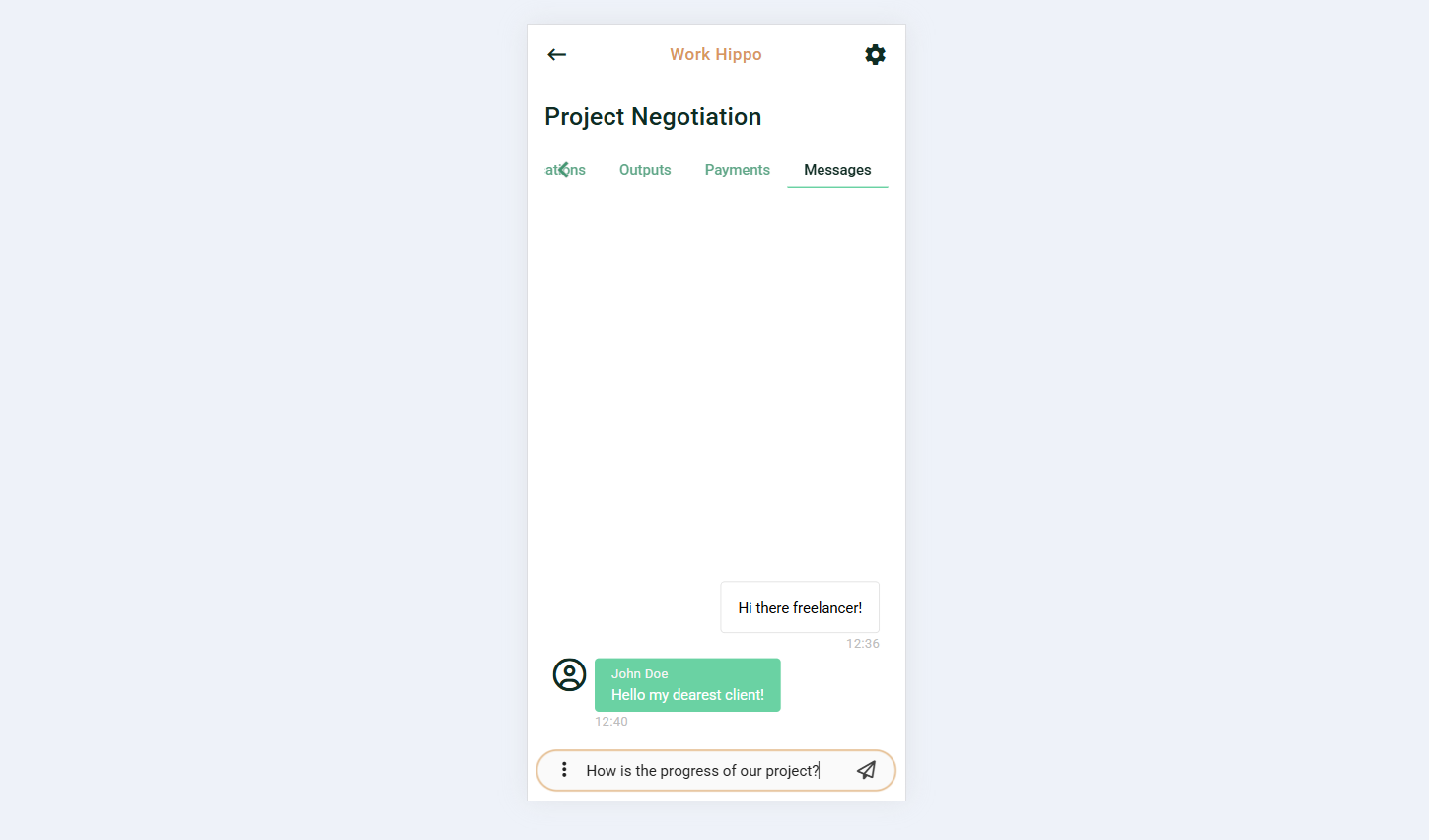
The Messages tab provides a centralized messaging board where communication between the client, freelancer, arbiter, and system administrator notifications are displayed.
Messaging Input:
- Messaging Input Form – Allows authorized users to send and receive messages related to the project.
Screenshot:
Client-Specific Tabs
Applications
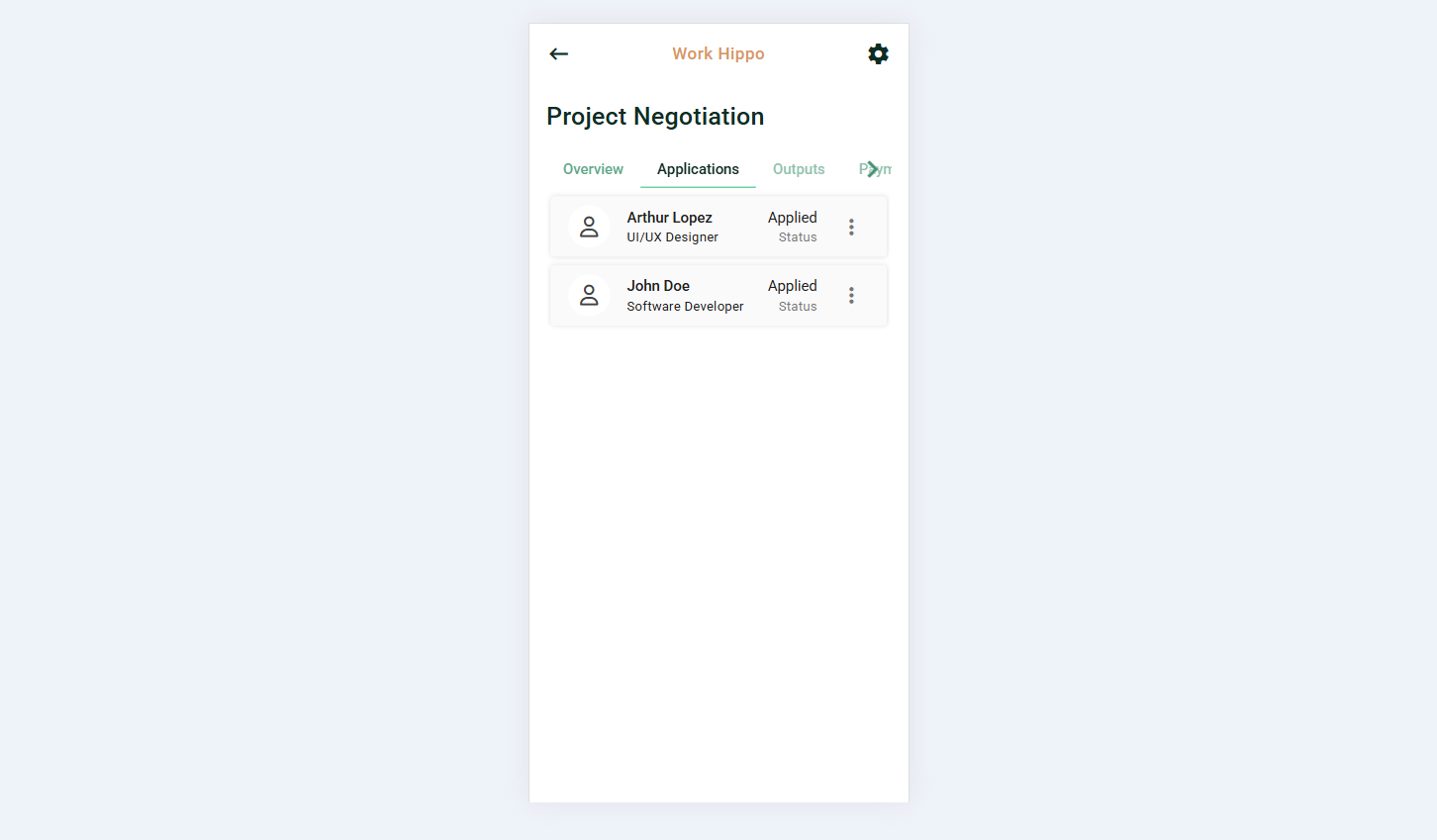
The Applications tab displays a list of all applicants for the job, each with a visible status indicator.
Dropdown Actions per Applicant:
- View Profile – Redirects to the freelancer’s profile.
- View Application – Redirects to the freelancer’s application details.
Screenshot:
Application Screen
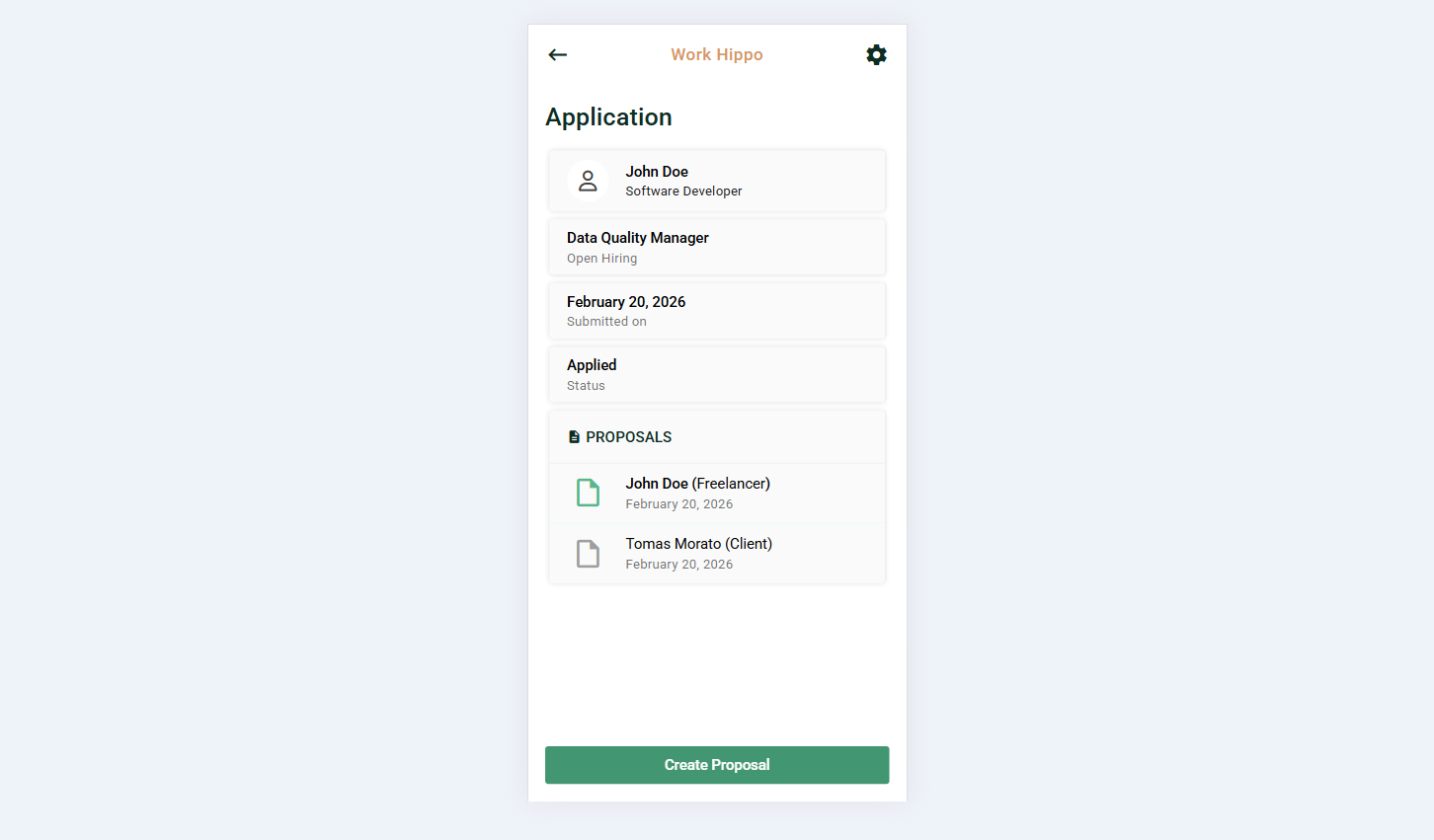
The Application screen provides an overview of the freelancer’s application.
- Displays application information such as name, role, submission date, application status.
- Includes a list of all proposals exchanged between the client and freelancer.
Action Buttons:
- Create Proposal – Opens a form to create an initial proposal or submit a counter-proposal.
- Send Down Payment – Redirects the client to the payment send page to initiate the required down payment.
Screenshot:
Freelancer-Specific Tabs
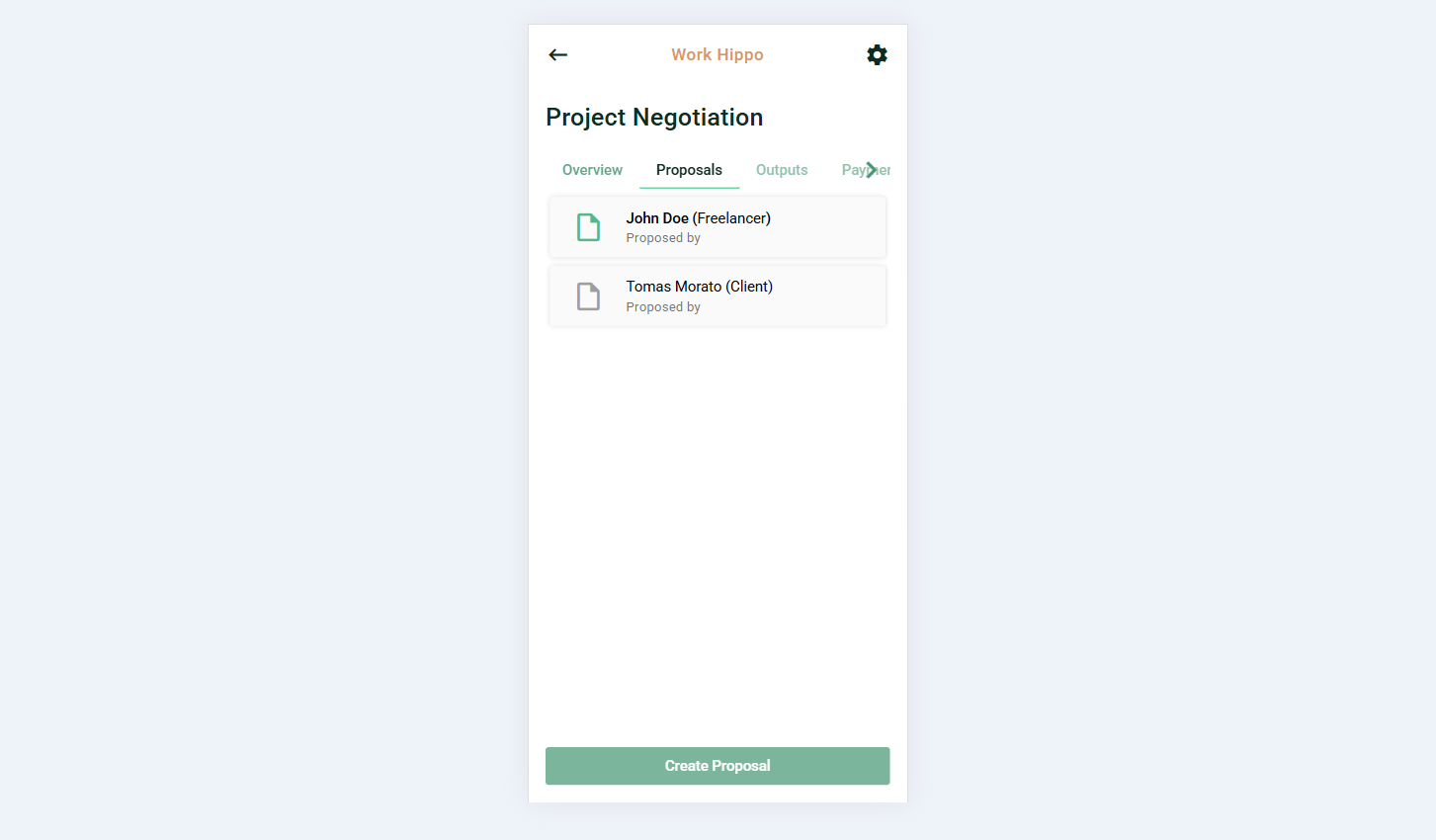
Proposals
The Proposals tab lists all proposals exchanged between the client and freelancer. Each proposal displays its current status, indicating whether it has been accepted or disregarded.
Screenshot:
Additional Features:
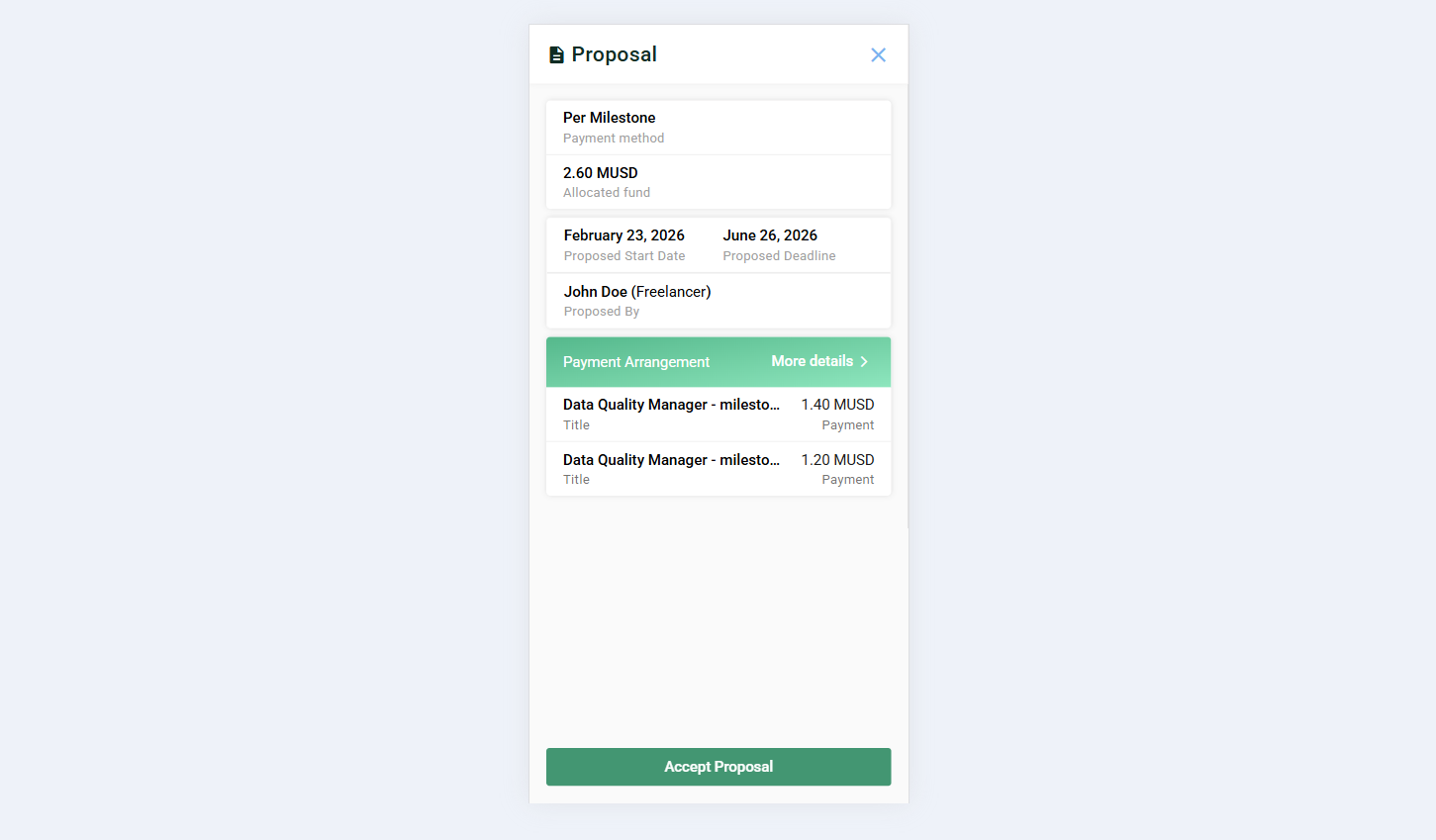
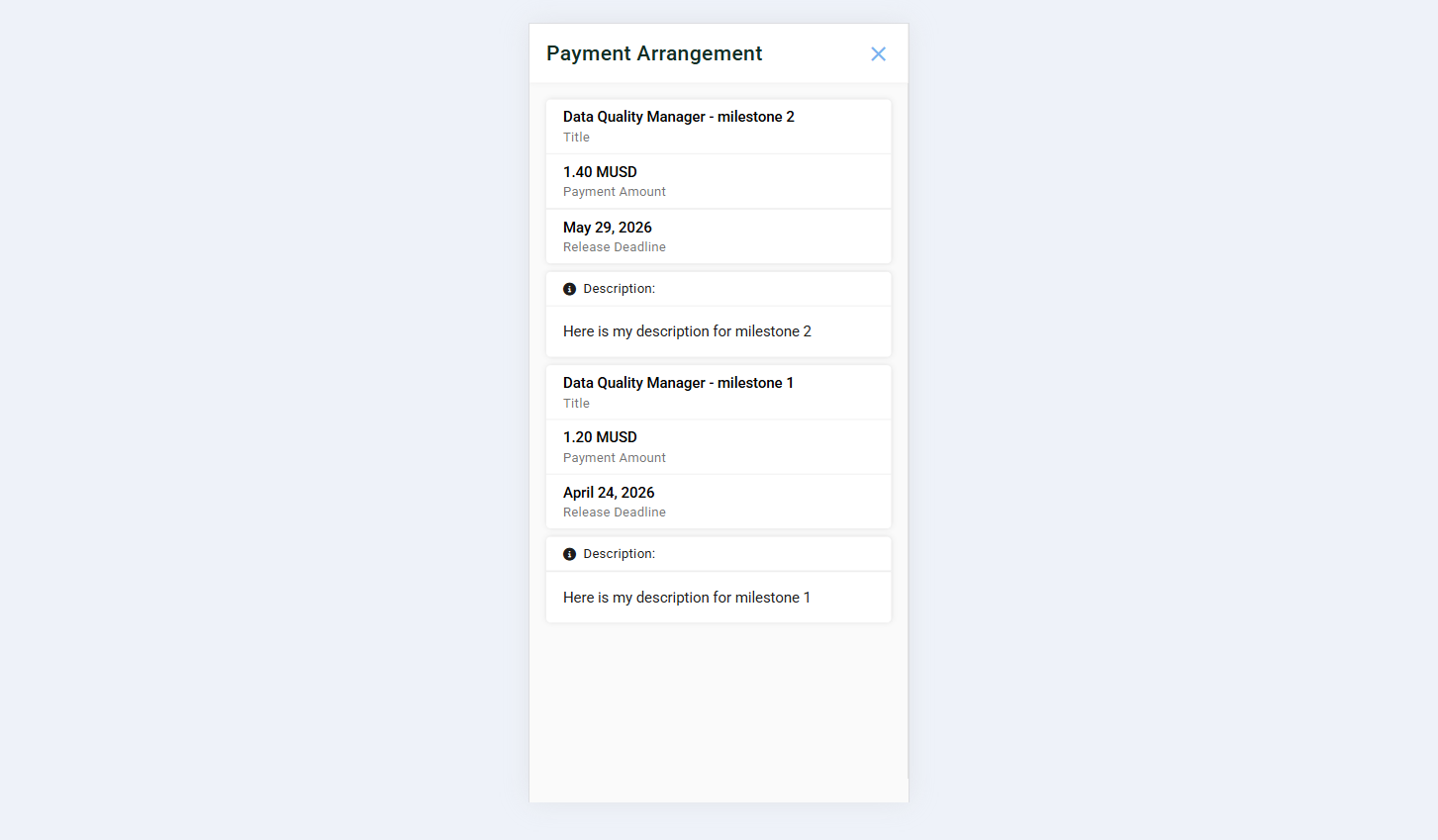
- Each proposal includes a dialog view that shows the complete proposal details for review.
Screenshot 1:
Screenshot 2:
The Project Negotiation module ensures transparent collaboration, structured negotiation, secure payments, and clear communication between all parties involved in a project.