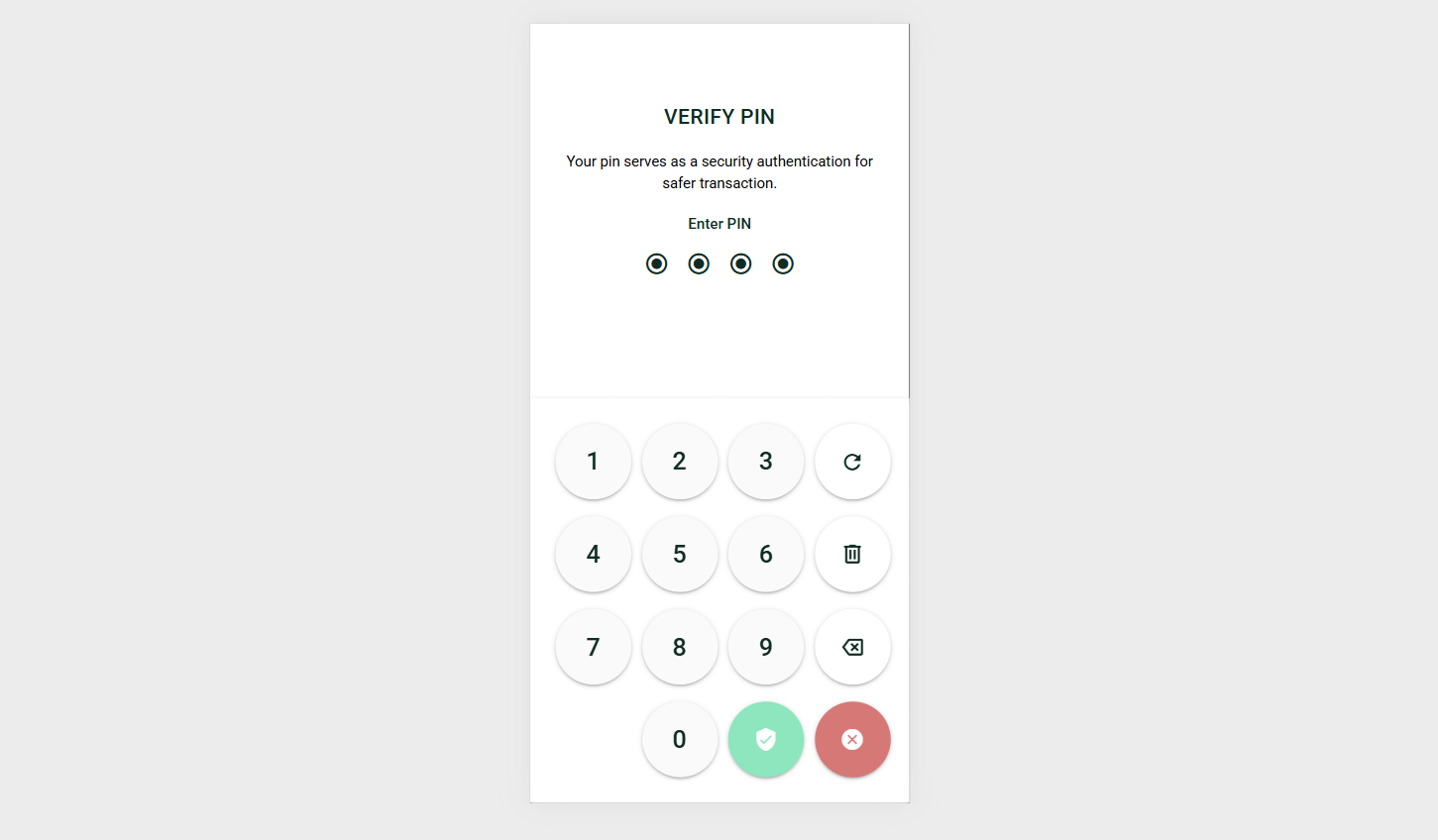
Wallet
The Wallet module allows users to manage their digital assets, send and receive funds, and review transaction history. It supports multiple asset types and provides secure, user-friendly transaction flows.
Wallet Overview
The wallet interface displays the user’s balance with a switchable asset view, allowing easy toggling between supported assets:
- BCH
- MUSD CashTokens
Screenshots:
Show asset balance
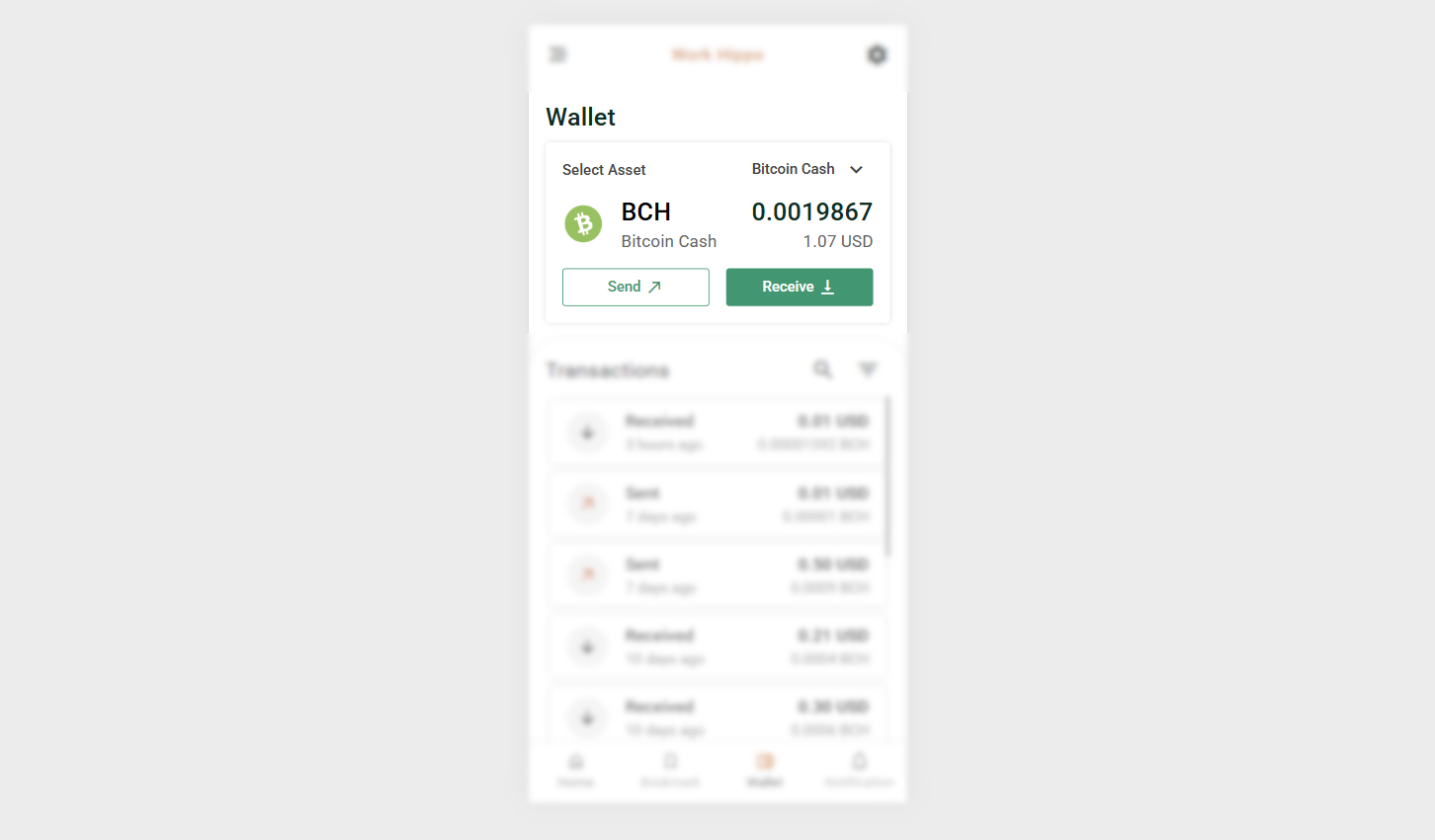
Switch to another asset
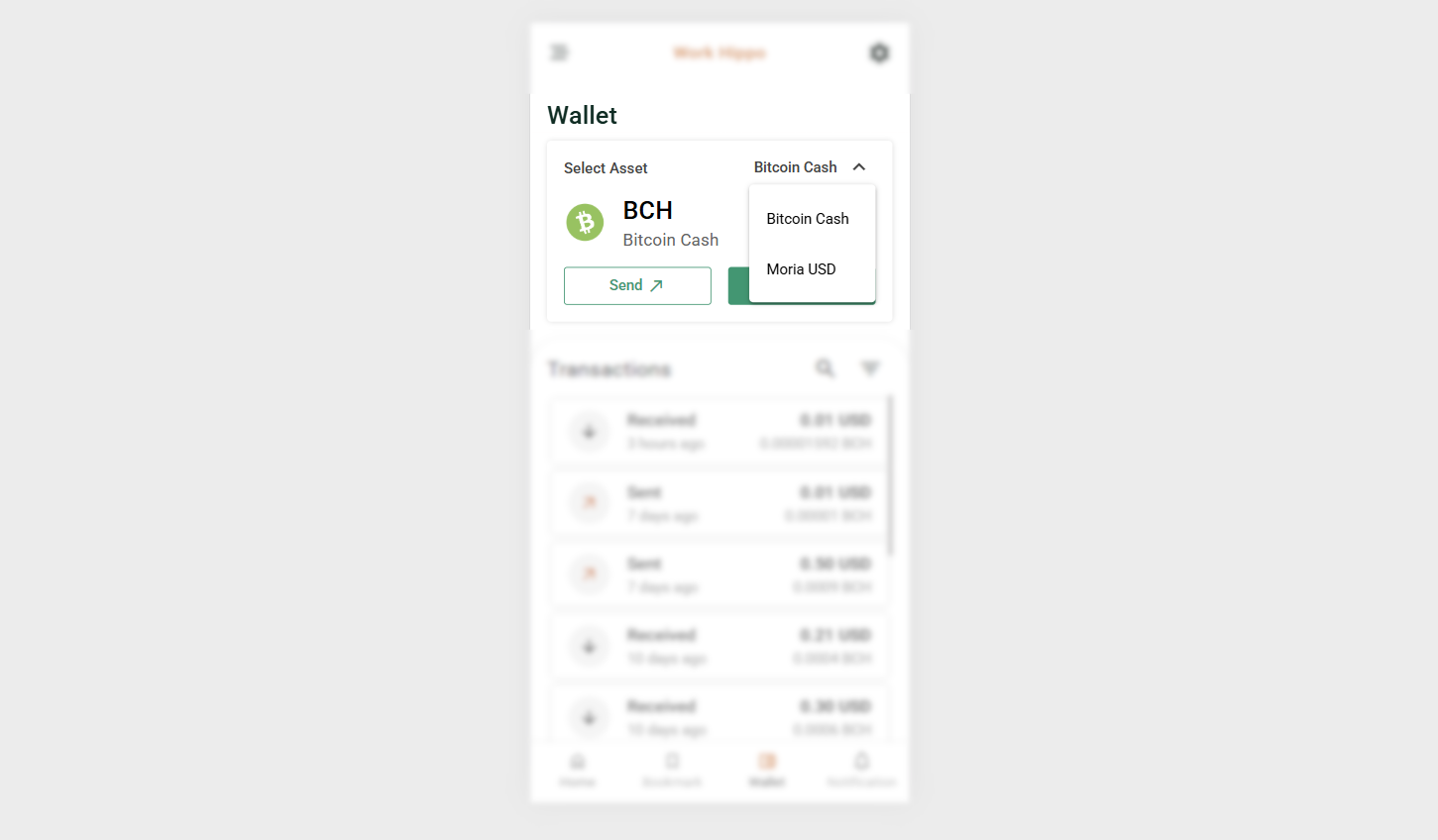
Depending on the selected asset, balances, transactions, and actions update accordingly.
Navigation Buttons
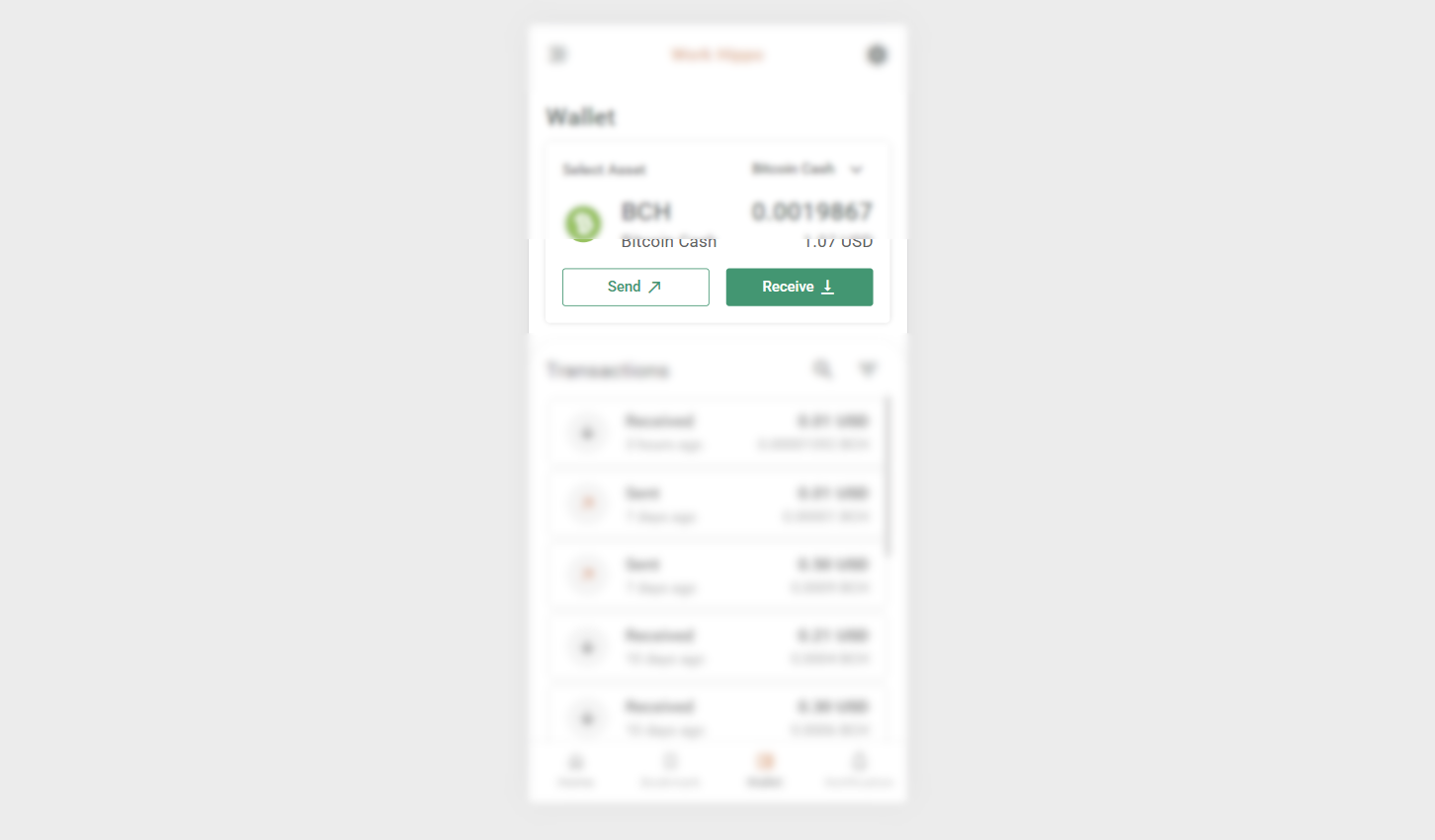
The wallet provides two primary navigation buttons:
Receive
- Redirects the user to the Receive screen.
- Displays the wallet address as a QR code for easy sharing and scanning.
Send
- Redirects the user to the Send screen.
- Allows the user to create and execute transactions.
Screenshot:
Transactions
The Transactions section displays a list of all wallet transactions based on the currently selected asset (BCH or MUSD).
Screenshot:
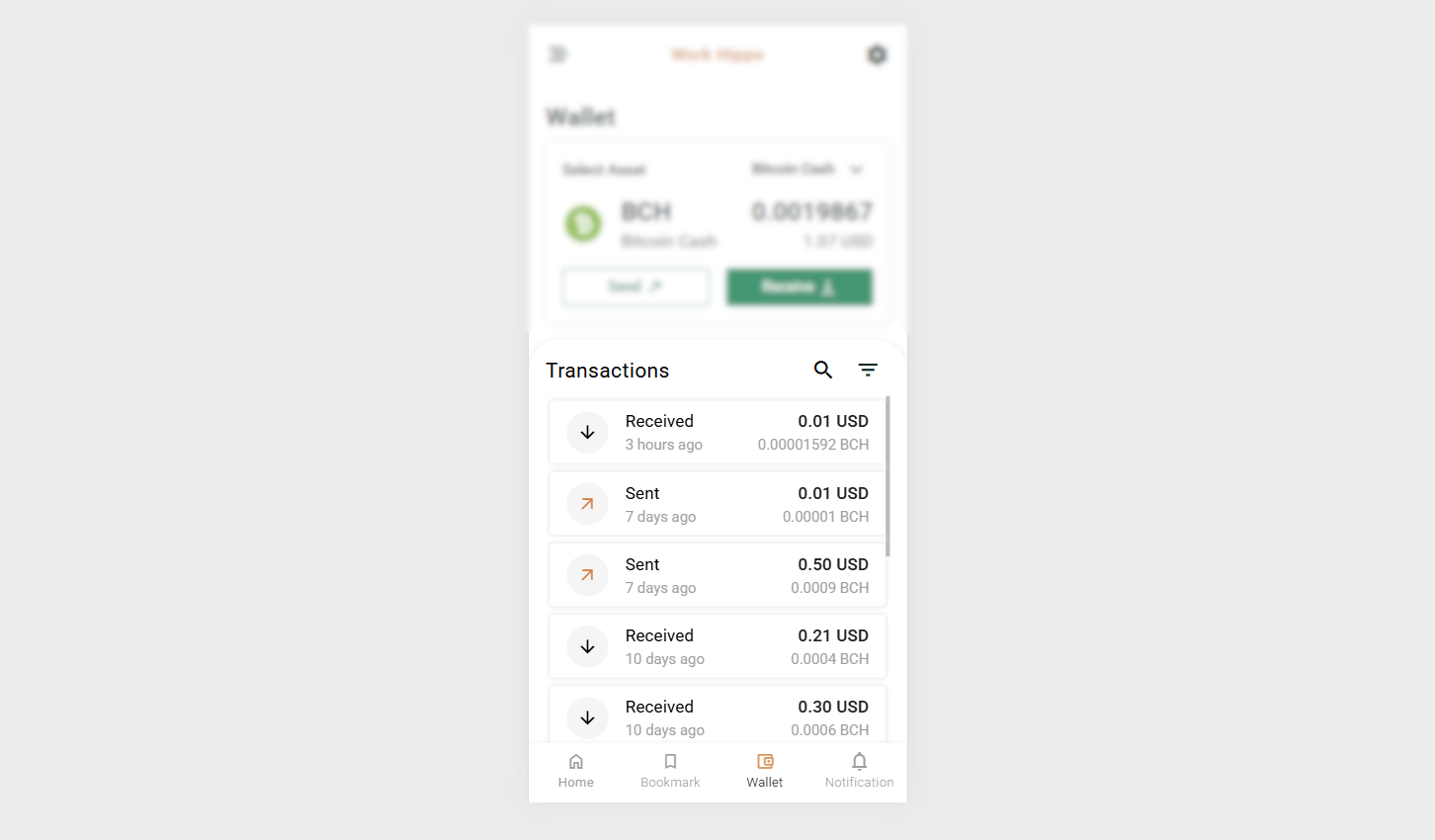
Selecting a transaction from the list opens a Transaction Details Dialog.
Transaction Types
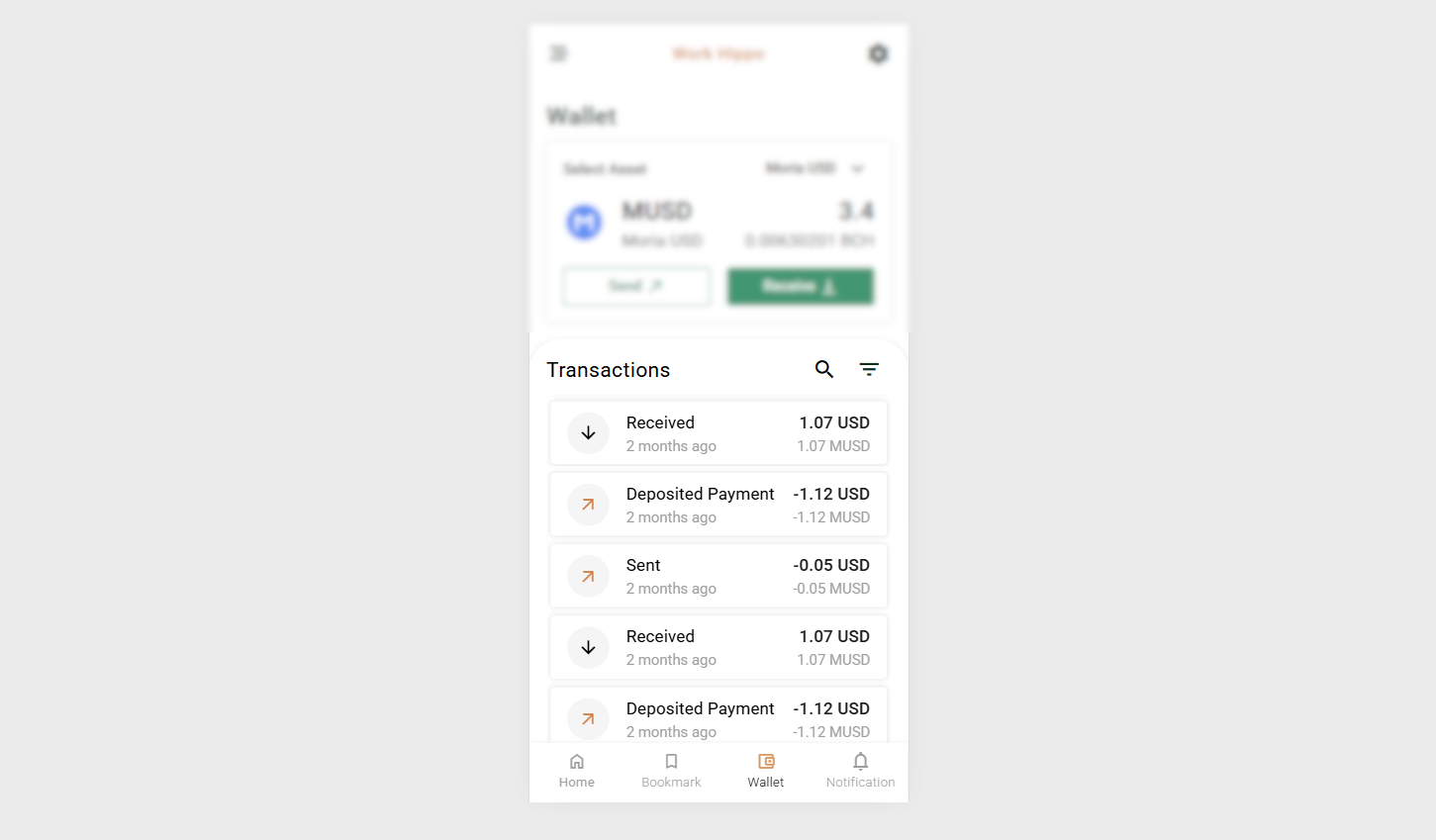
The wallet supports the following transaction types:
- Sent
- Received
- Deposited Payment
- Received Payment
- Withdrawal
Screenshot:
Transaction Filter
Users can filter transactions by:
- All
- Sent
- Received
Screenshot:
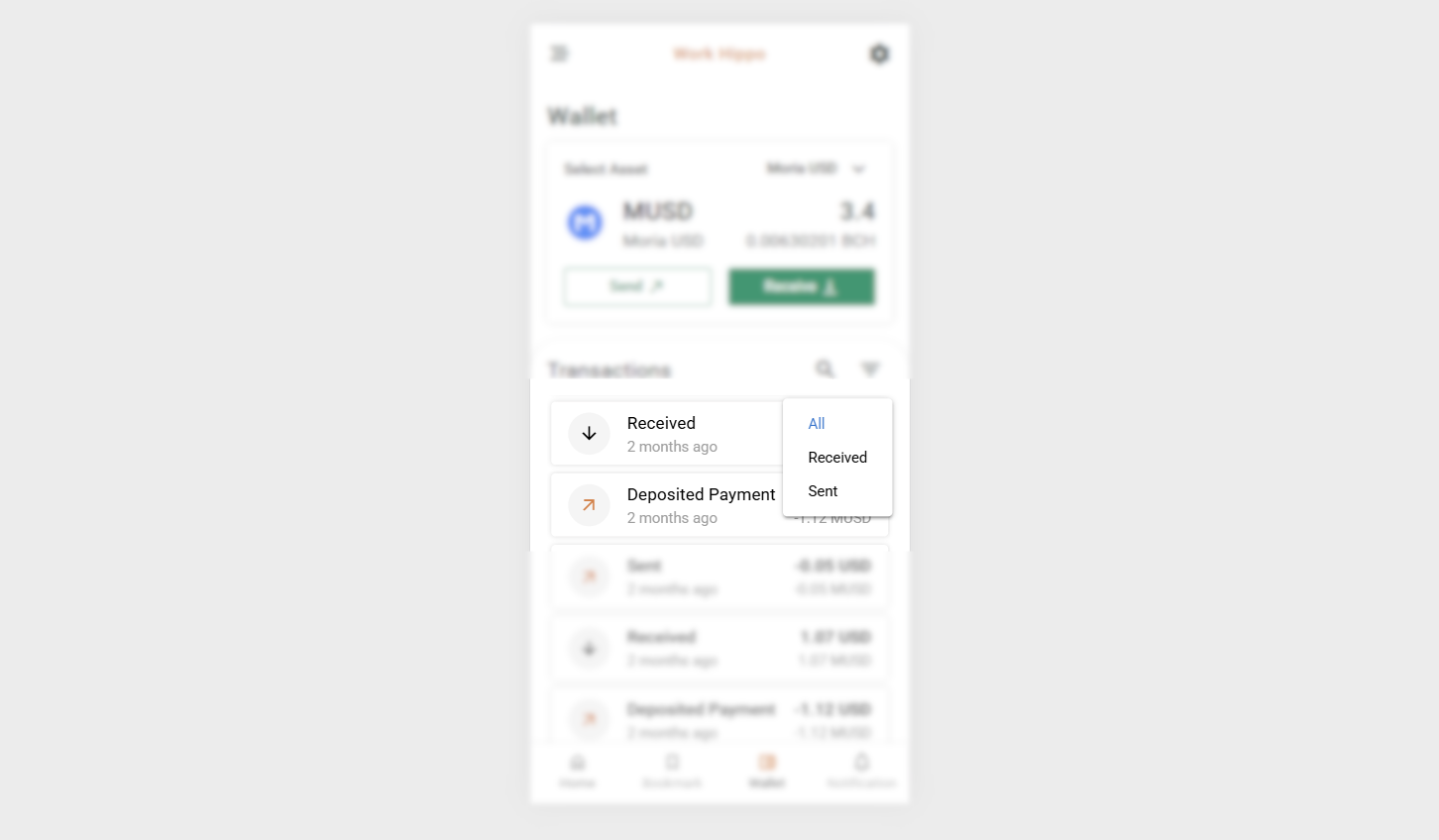
This helps users quickly locate specific transaction records.
Transaction Details Dialog
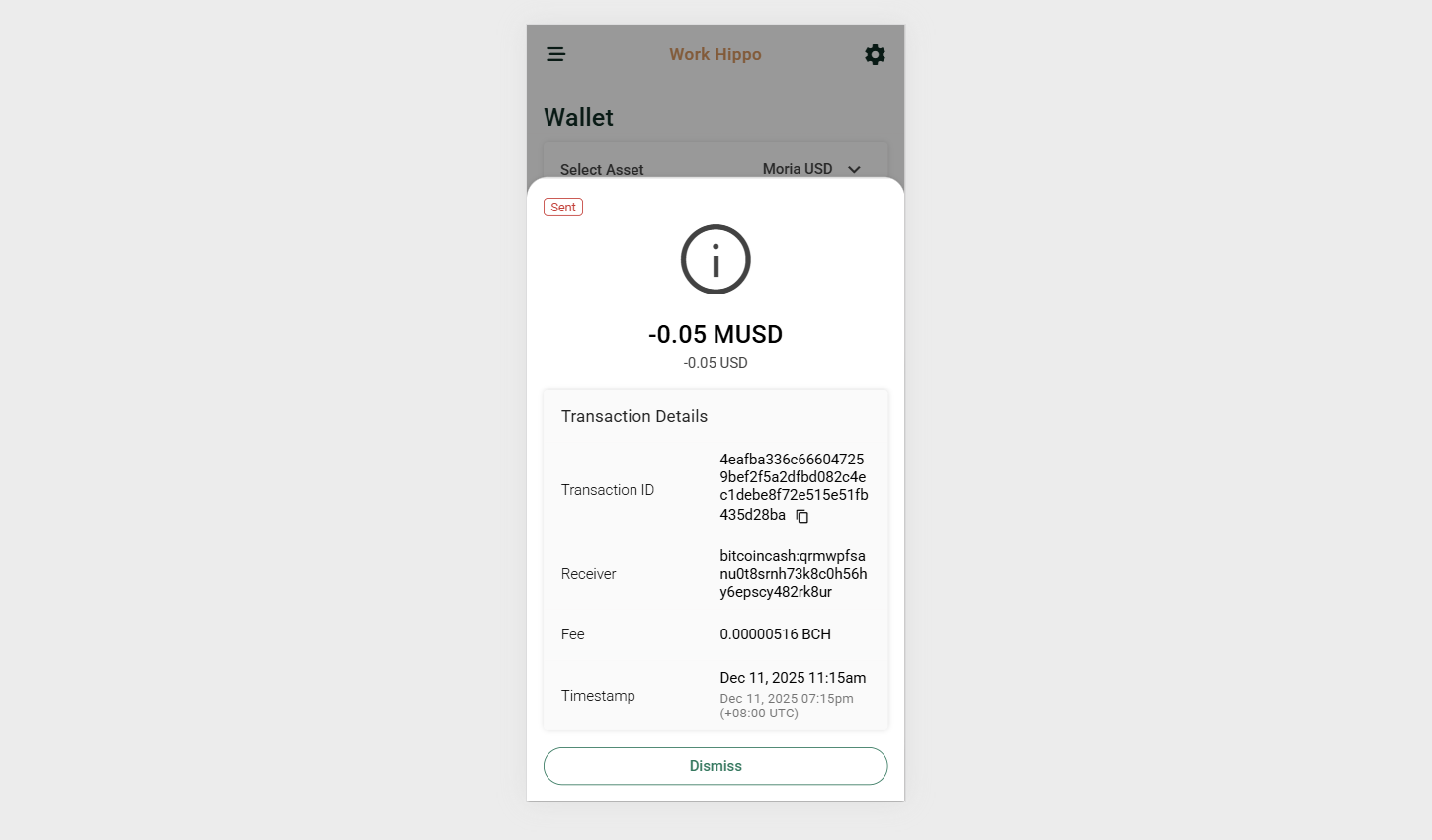
When a transaction is selected, a detailed dialog is shown containing:
- Transaction type
- Asset type
- Amount spent or received
- Transaction ID
- Receiving address
- Transaction fee
- Timestamp
Screenshot:
Child Screens
Receive Screen
The Receive screen displays the user’s wallet address in QR code format.
Depending on the selected asset, the address shown may be:
- A standard wallet address
- A token-specific address
Screenshot:
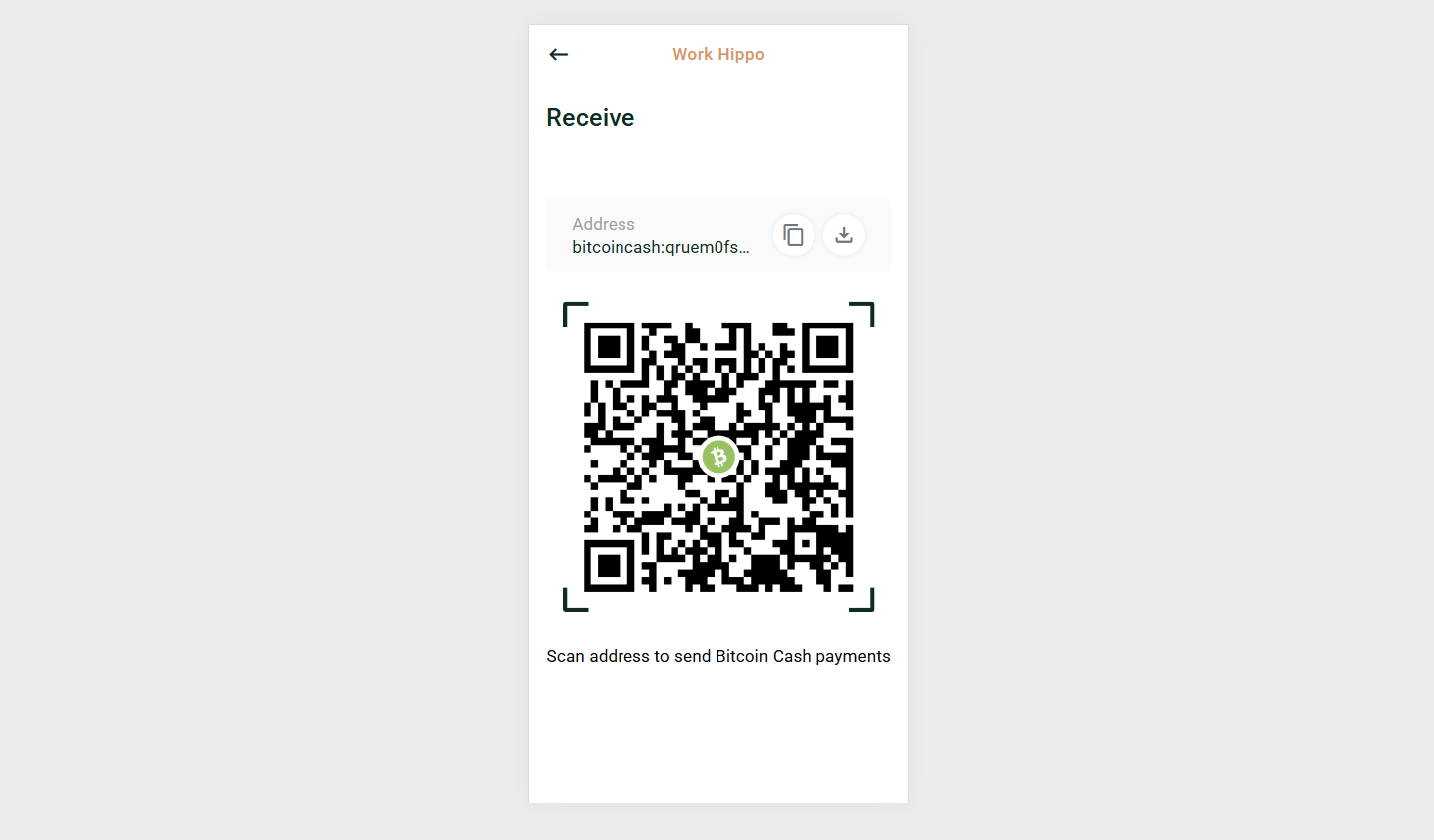
This screen is intended for safely receiving BCH or MUSD CashTokens.
Send Screen
The Send screen enables users to transfer assets securely and efficiently.
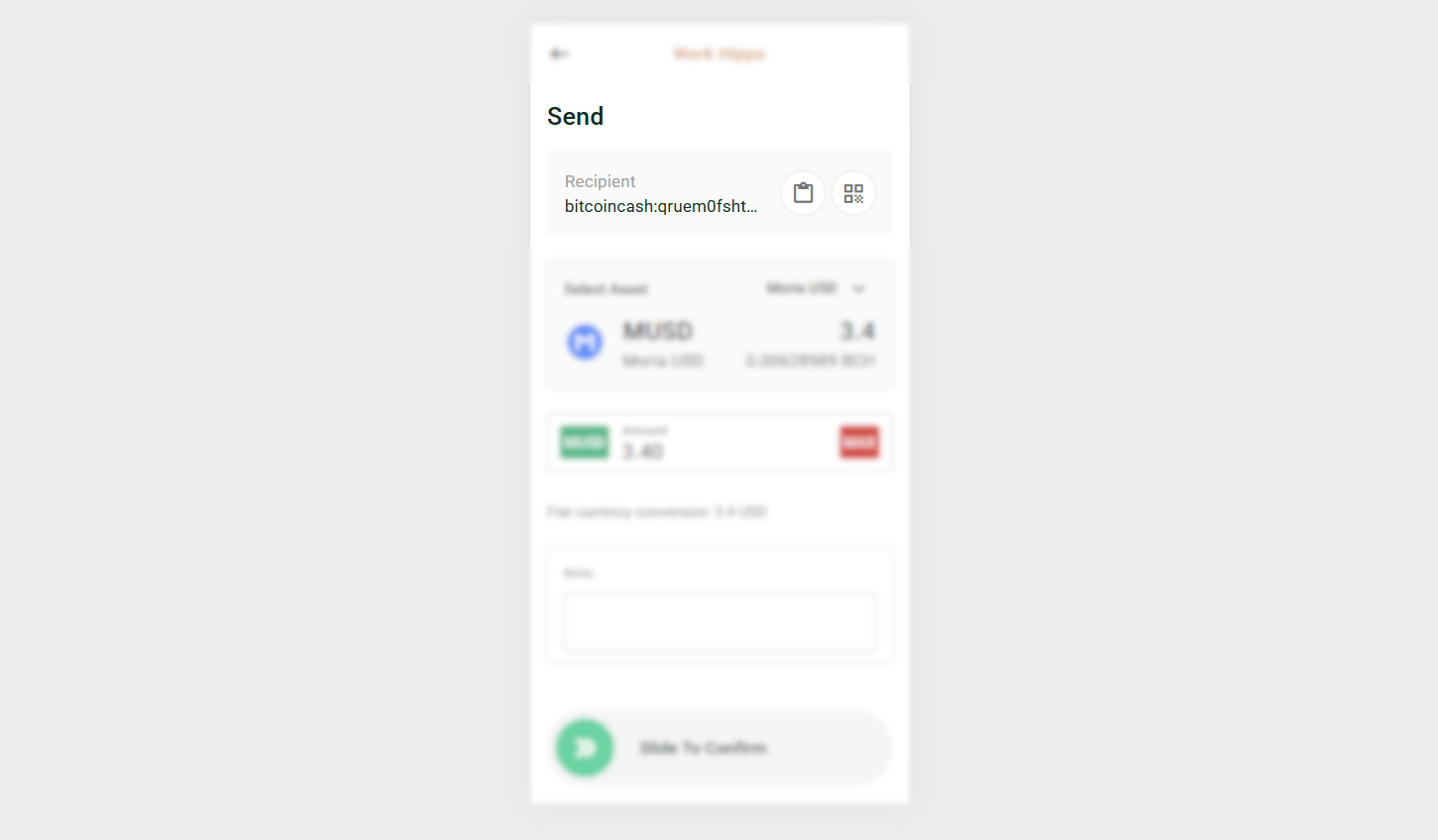
Receiving Address (Required)
- Field to input or display the destination wallet address.
- Includes the following action buttons:
- Paste (icon only): Pastes an address from the clipboard.
- Scan QR Code (icon only): Scans a QR code to capture a wallet address.
Screenshot:
Asset Balance Selector
- Allows switching the asset being sent:
- BCH
- MUSD CashTokens
Screenshot:
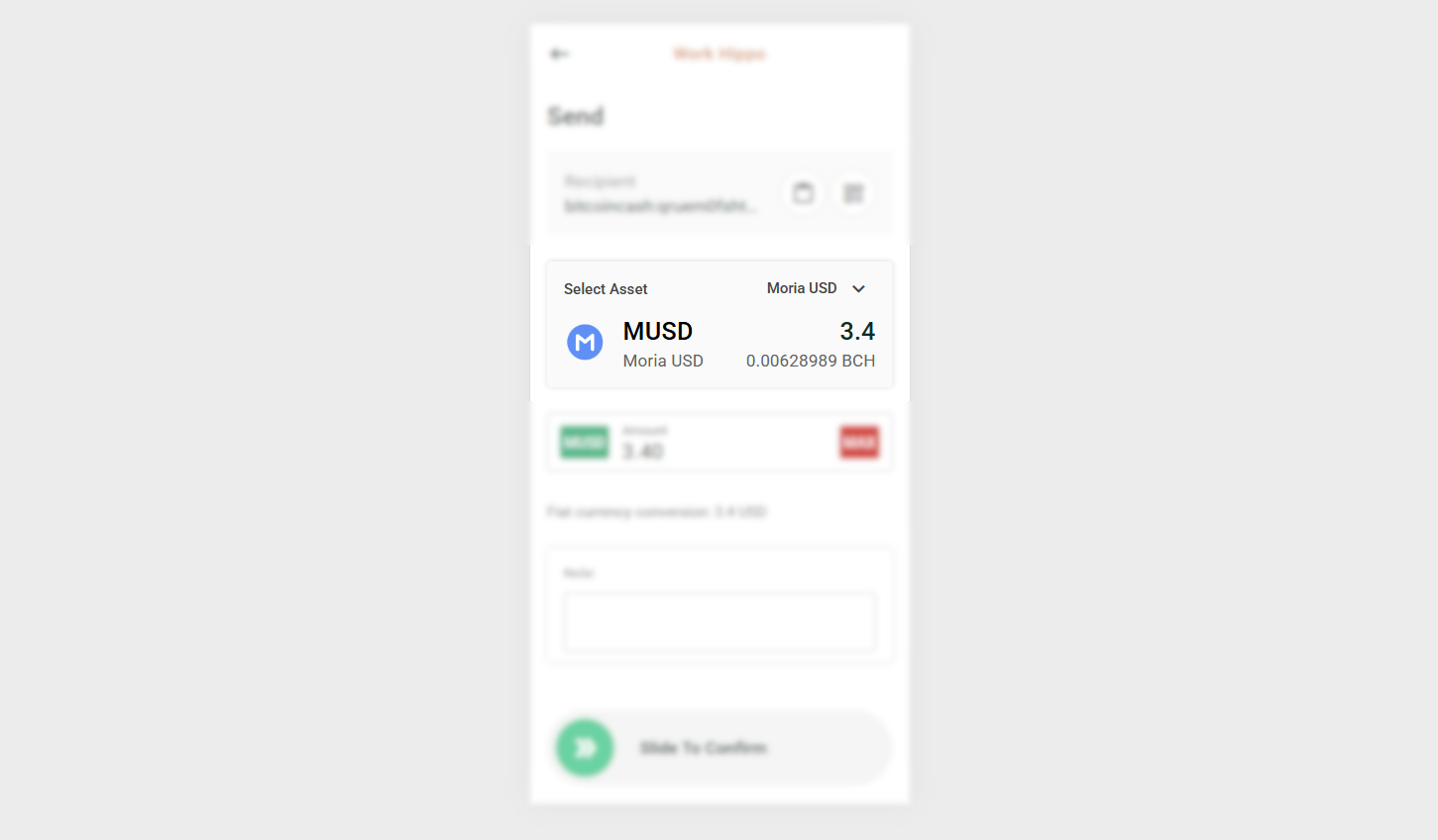
The selected asset determines the available balance and transaction unit options.
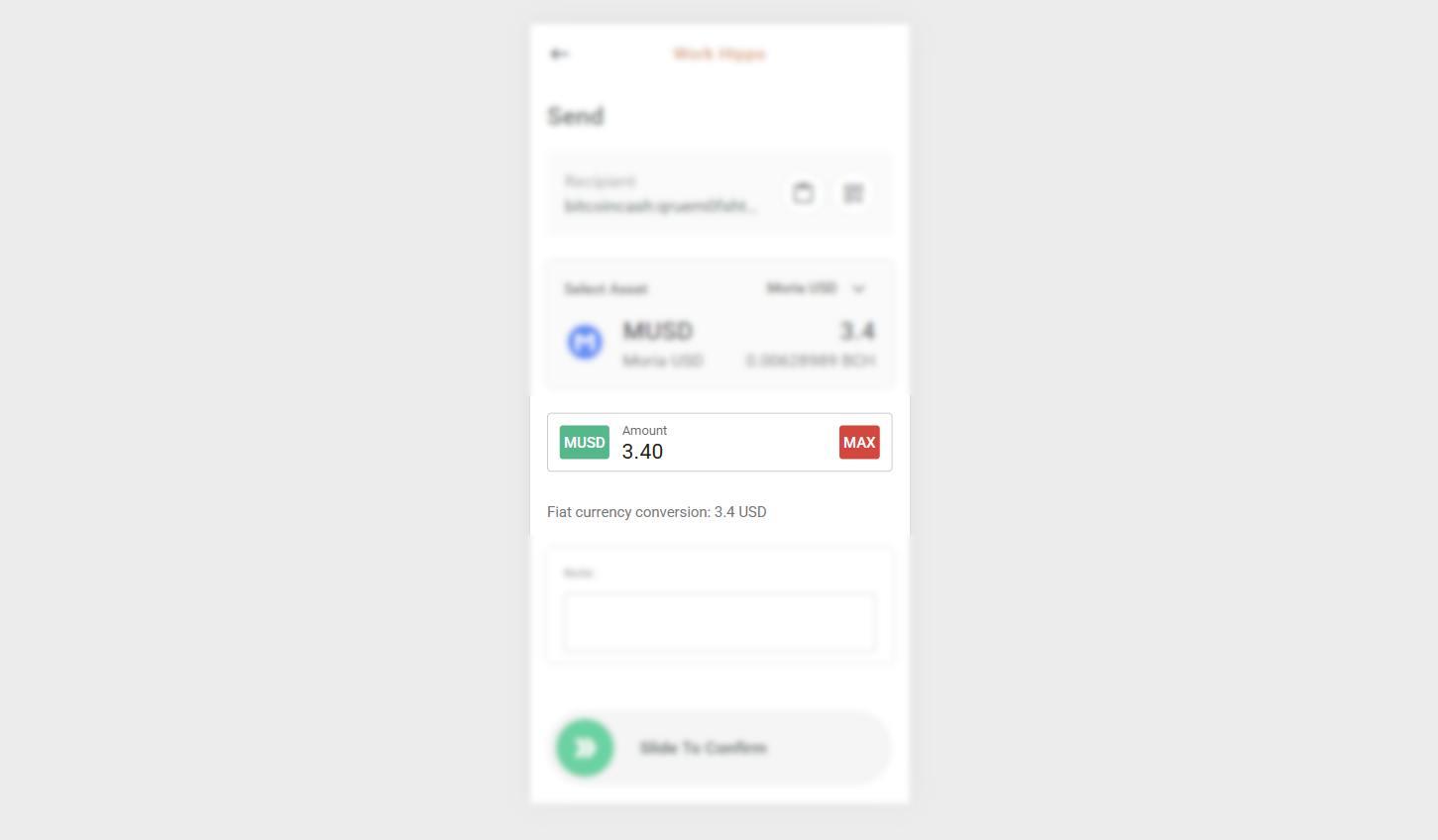
Amount Input (Required)
- Field to enter the amount the user wants to send.
- Includes action buttons:
- Switch Unit
- For BCH: toggle between BCH and fiat currency.
- Max
- Automatically sets the amount to the user’s full available balance.
- Switch Unit
- Show the conversion of input value based on the active unit (e.g. BCH to fiat)
Screenshot:
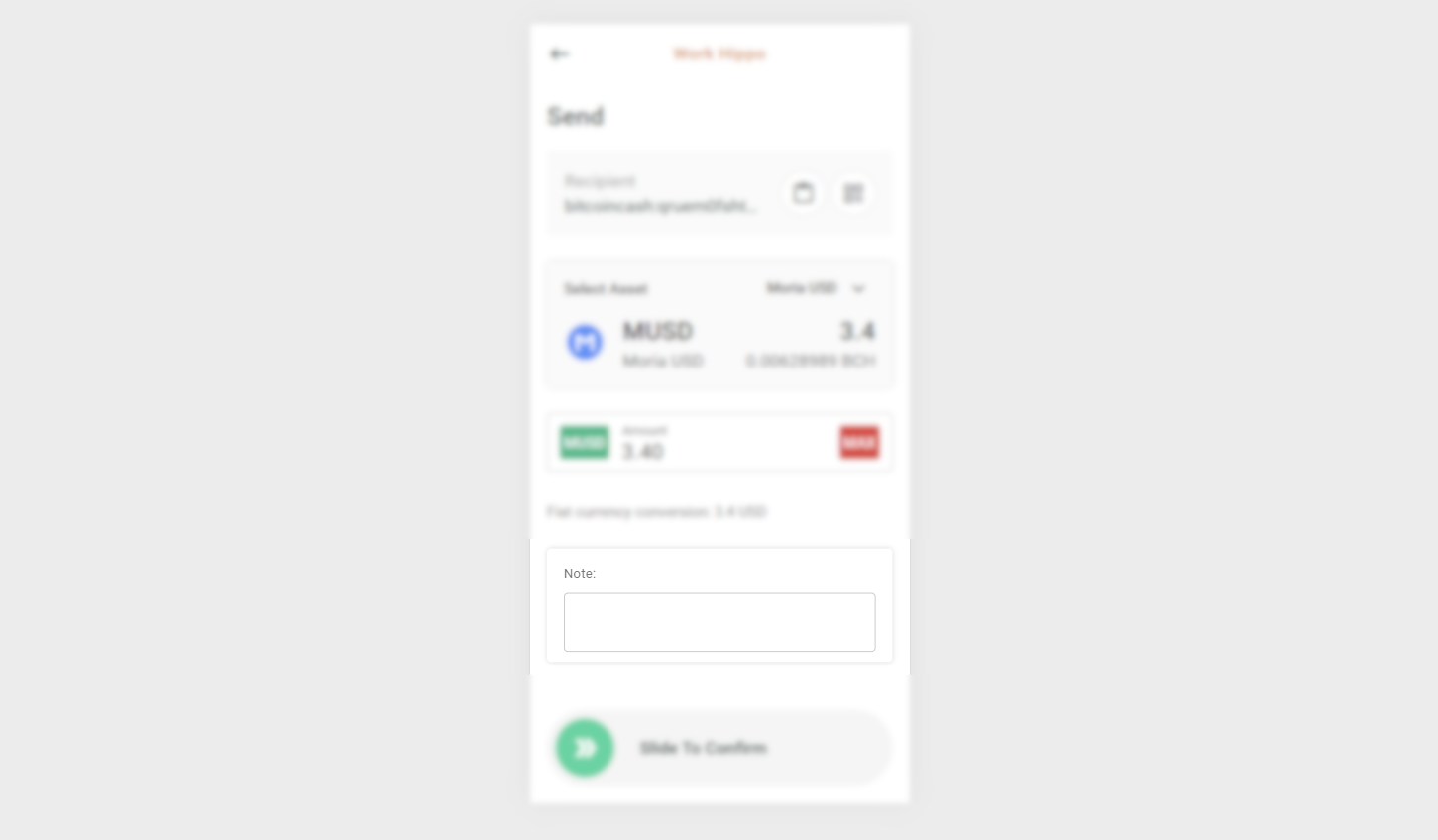
Note (Optional)
- An optional text field for adding notes or remarks to the transaction.
Screenshot:
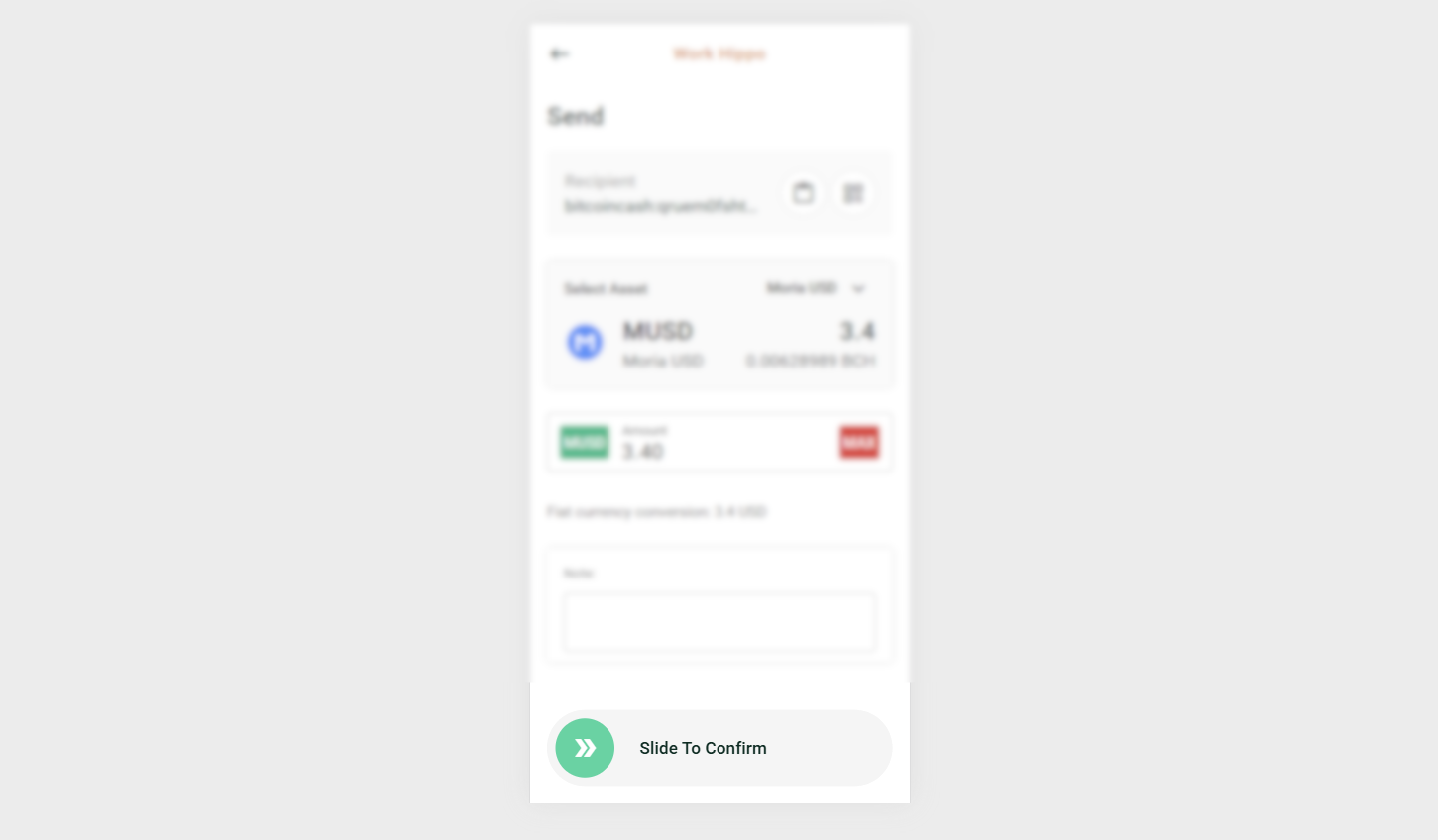
Slide to Confirm
- Enabled only when both the receiving address and amount are provided.
- Initiates the transaction process.
Screenshot:
PIN Confirmation (Optional)
- A PIN entry is required to authorize and complete the transaction.
- Ensures an added layer of security before execution.
Screenshot: